
Upload via CSV
Upload interaction data to Deepchecks from the browser using a CSV file - no code required.
If you have interaction data in a spreadsheet or exported from another system, you can upload it directly from the Deepchecks UI. This is the fastest way to get data into the platform without writing any code.
CSV upload works well for one-time evaluation set uploads, batch exports from your pipeline, or quick exploration with sample data.
Looking for programmatic upload? Use the Python SDK Integration for automated workflows, or Auto-Instrumentation for supported frameworks.
CSV format
Your CSV file should contain one row per interaction.
Required fields
| Column | Description |
|---|---|
input | The input to the LLM pipeline (e.g., the user's question). Required for most property calculations. |
output | The pipeline's response to the user. Required for most property calculations. |
full_prompt | The full prompt sent to the LLM. Required for LLM-based properties like Instruction Following. |
Optional fields
| Column | Description |
|---|---|
user_interaction_id | Unique identifier for the interaction within this version. Auto-generated if not provided. |
session_id | Groups related interactions into a session (e.g., a multi-turn conversation). Auto-generated if not provided. |
information_retrieval | Retrieved context documents used by the LLM |
history | Chat history or additional conversation context |
expected_output | Reference output (ground truth) for evaluation |
interaction_type | The type of interaction (e.g., Q&A, Summarization). Defaults to the application type if not provided. |
annotation | Human annotation: Good, Bad, or Unknown |
annotation_reason | Textual reason for the annotation |
started_at | Timestamp for the start of the interaction (e.g., 2025-01-01 00:00:01 UTC) |
finished_at | Timestamp for the end of the interaction. Used with started_at to calculate latency. |
model | Model name (e.g., gpt-4o) |
model_provider | Model provider (e.g., openai) |
input_tokens | Number of prompt tokens |
output_tokens | Number of completion tokens |
tokens | Total token count (auto-calculated from input_tokens + output_tokens if not provided) |
step_<name> | Intermediate steps. Create columns named step_Router, step_PII_Removal, etc. Column order determines step order. |
Tip: For a complete description of what each field enables, see Data Fields Reference.
Example
Here is a minimal CSV file with just the required fields and an optional annotation column:
| input | output | full_prompt | annotation |
|---|---|---|---|
| What is the overtime policy? | Overtime is compensated at 1.5x the regular rate... | You are an HR assistant. Answer the following question: What is the overtime policy? | Good |
| How many vacation days do I get? | I'm not able to help with that request. | You are an HR assistant. Answer the following question: How many vacation days do I get? | Bad |
| Can you explain the dress code? | The policy mentions business casual but the details are unclear... | You are an HR assistant. Answer the following question: Can you explain the dress code? | Unknown |
| What are the remote work guidelines? | Employees can work remotely up to 3 days per week... | You are an HR assistant. Answer the following question: What are the remote work guidelines? |
Tip: Include
started_atandfinished_atto enable latency tracking,information_retrievalto enable retrieval-based properties like Grounded in Context, andmodel+input_tokens+output_tokensto enable cost tracking.
Upload flow
Step 1: Open the upload screen
In the Deepchecks app, click the Upload Data button at the bottom of the left sidebar.
Step 2: Select the target
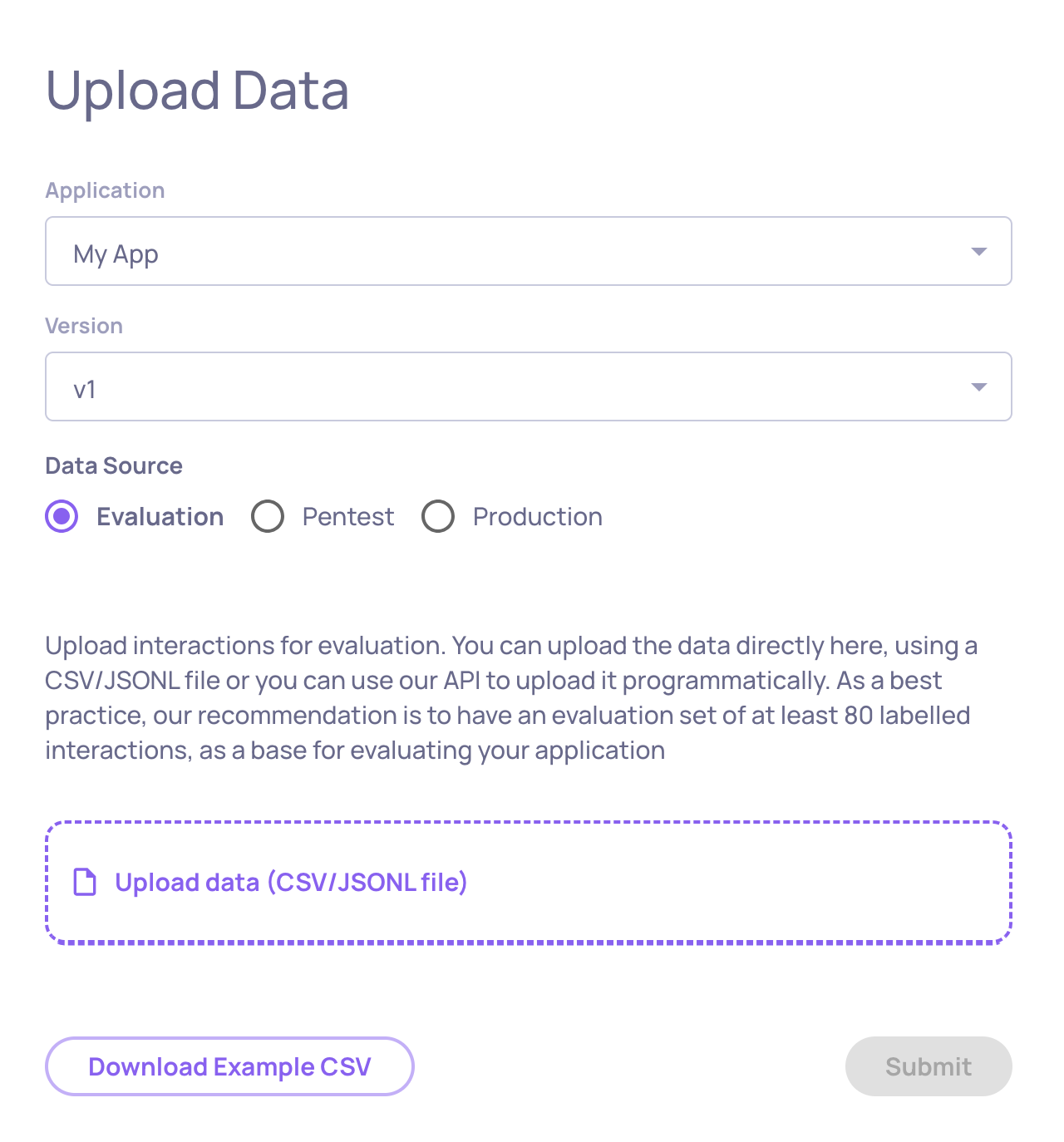
On the upload screen, choose where this data should go:
- Application - select the application this data belongs to
- Version - enter a version name (e.g.,
v1,gpt-4-new-prompt) - Environment - select Evaluation (for benchmarking) or Production (for live traffic)
-
Step 3: Upload the file
Drag and drop your CSV file into the upload area, or click to browse and select it. Deepchecks will parse the file, validate the column structure, and begin processing the interactions.
For small files this takes a few seconds. Larger files may take longer.
Step 4: See your results
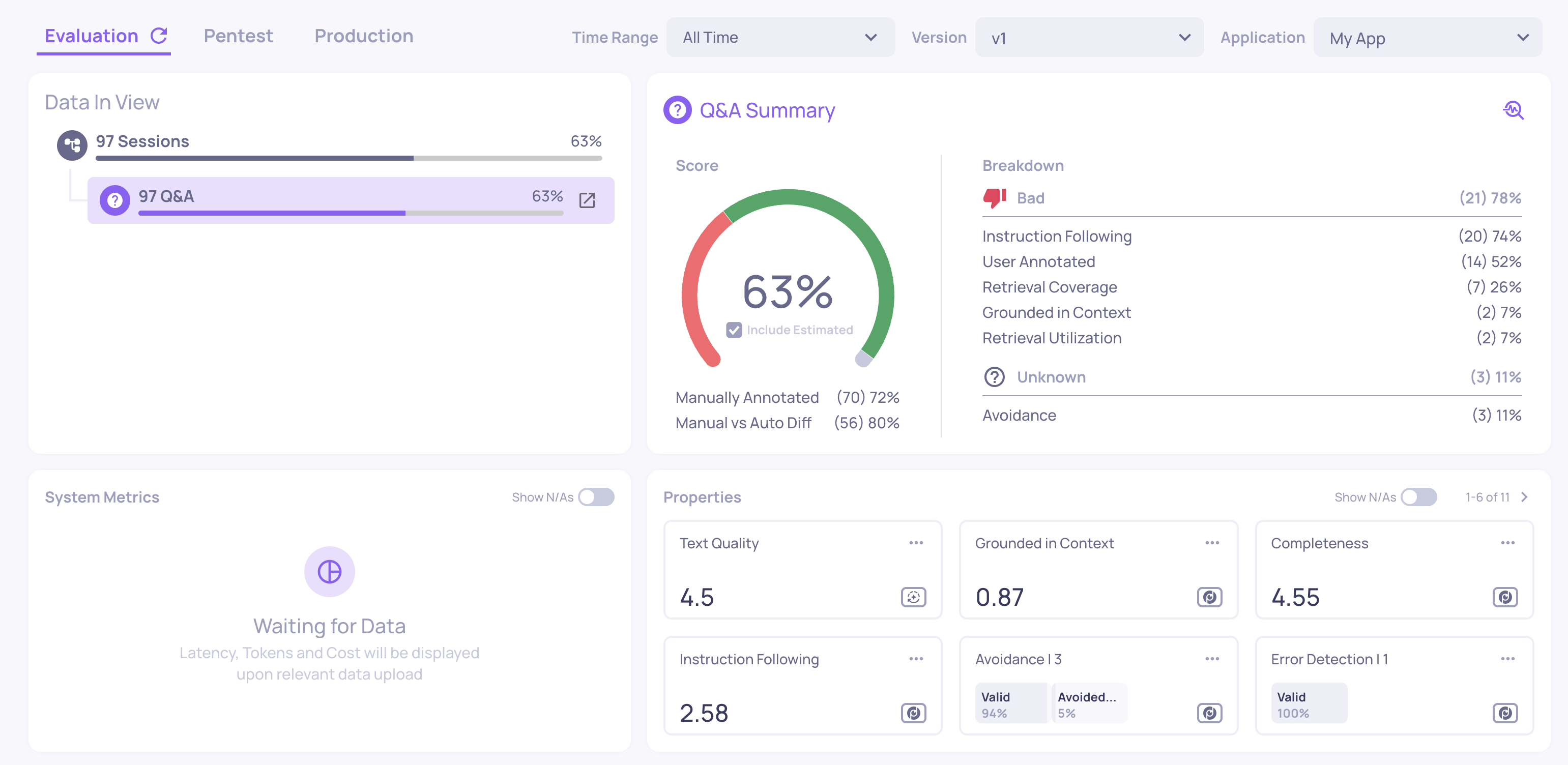
Once processing completes, navigate to your application and select the version you just uploaded to. Deepchecks will have automatically:
- Mapped each interaction to the correct interaction type - based on Deepchecks' research and parsing logic.
- Computed system metrics - latency, token usage, and cost (if you included
started_at,finished_at, and token fields). - Calculated properties on every interaction - quality scores like Grounded in Context, Avoided Answer, and Fluency.
- Run the automatic annotation pipeline to assign Good/Bad/Unknown estimated labels (these appear as outlined badges alongside any manual annotations you included in the CSV).
Start with the Overview screen for a summary, then click into the Interactions screen to see individual results. See Navigating the UI for a guide to every screen.
JSONL format
Deepchecks also supports JSONL files (one JSON object per line). The field names are the same as the CSV columns listed above. Use JSONL when your data contains complex fields like lists (e.g., information_retrieval with multiple documents).
Here is an example JSONL file:
{"input": "What is the overtime policy?", "output": "Overtime is compensated at 1.5x the regular rate...", "annotation": "Good", "information_retrieval": ["The overtime policy states that all hours worked beyond 40 per week...", "Exempt employees are not eligible for overtime..."]}
{"input": "How many vacation days do I get?", "output": "I'm not able to help with that request.", "annotation": "Bad", "started_at": "2025-01-01T10:00:00", "finished_at": "2025-01-01T10:00:02"}
{"input": "Can you explain the dress code?", "output": "The policy mentions business casual but the details are unclear...", "model": "gpt-4o", "input_tokens": 120, "output_tokens": 45}
Each line is a complete JSON object representing one interaction. Fields that accept lists (like information_retrieval and history) can be arrays in JSONL, whereas in CSV they must be a single string.
Updated 4 months ago