
Dataset Management
Create and manage curated evaluation sets for systematic testing across versions - build them manually, from production data, or with AI generation.
Datasets are curated collections of test samples you run against each version to get reproducible, comparable results. Version comparison works best when every version is tested on the same inputs - datasets give you that controlled baseline. Build them from production failures, upload your own, or generate them with AI.
What are datasets?
A dataset is a named collection of test samples within an application. There are two types:
Single-turn datasets
Each sample consists of:
- Input (required) - The test input to send to your application (can be a string, JSON object, or array)
- Reference Output (optional) - Expected or reference output for comparison
- Metadata (optional) - Additional context like test category, difficulty level, or sample tags
Multi-turn datasets
Each sample consists of:
- Input:
- Task (required) - The instruction or goal the AI agent should accomplish
- Persona (optional) - The identity or role the simulated user takes on
- Context (optional) - Background information or scenario details (e.g., "the user already tried resetting their password twice")
- Reference Output (optional) - Expected or reference output for comparison
- Metadata (optional) - Additional context like test category, difficulty level, or sample tags
Datasets serve multiple purposes: regression testing across versions, benchmarking performance improvements, evaluating model changes, and validating prompt modifications before production rollout.
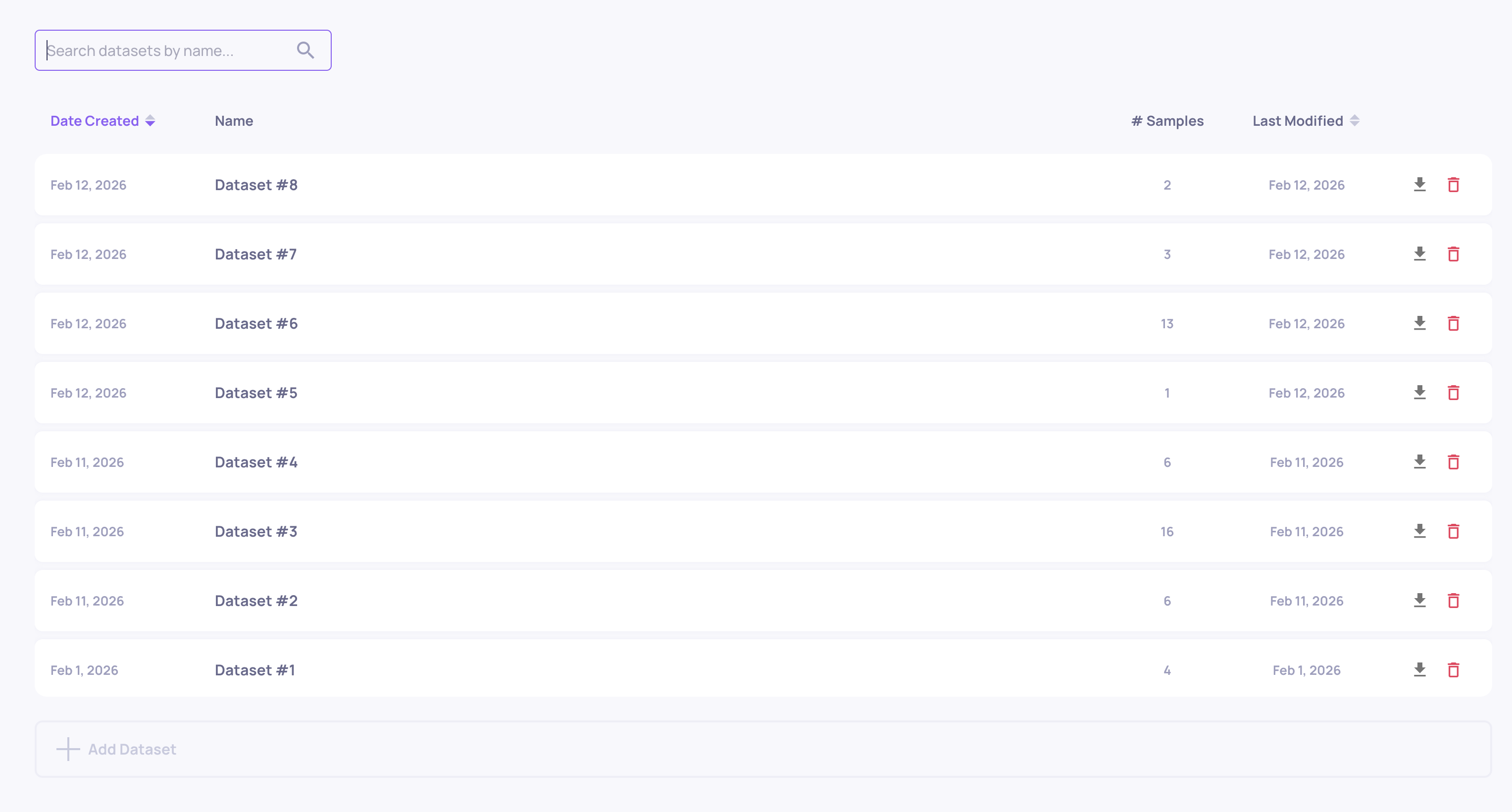
Creating datasets
Via the SDK
from deepchecks_llm_client import DeepchecksLLMClient

client = DeepchecksLLMClient(api_token="your-token", host="your-host")

# Create a new dataset
dataset = client.create_dataset(
    app_name="my-app",
    dataset_name="regression-tests-v1"
)

# Add samples
samples = [
    {
        "input": {"prompt": "What is machine learning?"},
        "output": {"expected": "ML is..."},
        "sample_metadata": {"category": "definitions"}
    },
    {
        "input": {"prompt": "Explain neural networks"},
        "output": {"expected": "Neural networks are..."},
        "sample_metadata": {"category": "concepts"}
    }
]

client.add_dataset_samples(
    app_name="my-app",
    dataset_name="regression-tests-v1",
    samples=samples
)
Via the UI
- Navigate to your application's Datasets page
- Click Create Dataset and choose single/multi-turn
- Provide a descriptive dataset name
- Add samples manually, upload a CSV, or use Generate Test Data
Managing dataset samples
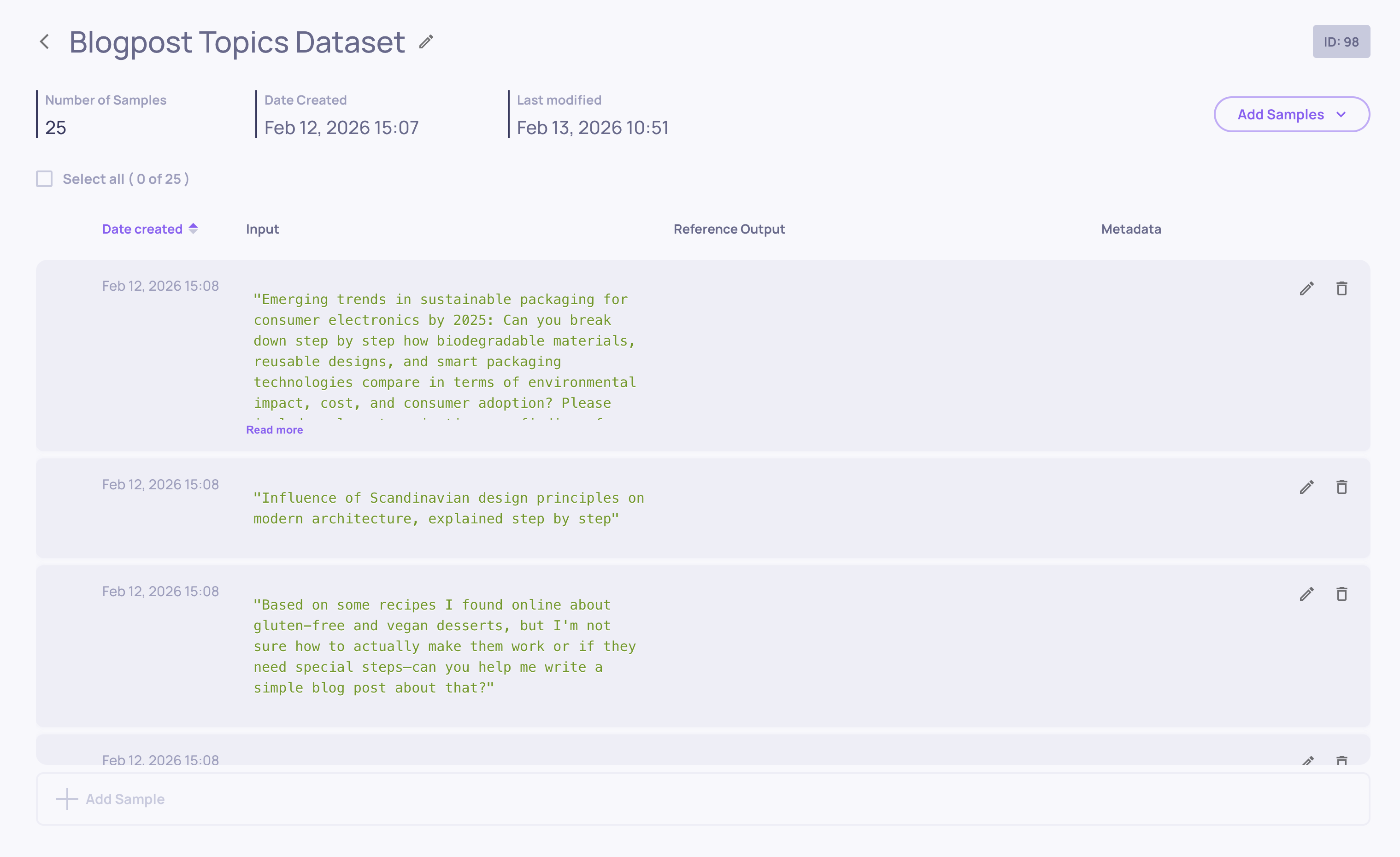
Viewing samples
The dataset details page displays all samples within a dataset. Each row shows input preview, output preview (if provided), metadata tags (if provided), and edit/delete actions.
Adding samples
Single sample (UI): Open the dataset, click Add Sample, enter input (required) and output (optional), add metadata as key-value pairs, and save.
Batch upload (SDK):
# Add up to 55,000 samples per API call
client.add_dataset_samples(app_name, dataset_name, samples_list)
You can also add samples via CSV/JSON upload or AI generation using the Add Samples button at the top-right of the dataset screen.
Editing samples
Update existing samples by clicking the edit icon. You can modify input or output content and update metadata tags. Changes are saved immediately.
Building your evaluation set over time
A good evaluation set evolves with your application. Common strategies:
- Start with AI generation - Use Generate Test Data to create an initial diverse set covering different scenarios and edge cases
- Clone from production - As you monitor production traffic, clone interesting or problematic interactions into your dataset to make it more representative
- Add failure cases - When Root Cause Analysis reveals new failure patterns, add representative examples to your dataset so future versions are tested against them
This creates a feedback loop: production reveals problems → problems become test cases → new versions are tested against those cases → the best version is deployed.