
Access Control
Learn how Deepchecks manages user permissions using role-based access control and how to assign and manage roles in your organization.
Overview
Deepchecks uses a role-based access control (RBAC) model with two tiers of access control:
-
Basic Tier (Default): Each user in the organization has a single role that applies to all applications in the organization. All users automatically have access to all applications.
-
Per-Application Access Tier: When enabled, each user still has a single role, but they only have access to a specific list of applications. Their role applies uniformly to all applications they can access.
Each user is assigned:
- A role (MetricsViewer, Viewer, Member, Admin, or Owner) that determines their permissions
- Application access (when per-app permissions are enabled) - a list of specific applications the user can see and access
Every role automatically includes all permissions of the roles below it, plus some additional capabilities.
Roles and Permissions
MetricsViewer
- Can view dashboards, charts, and aggregated metrics across applications
- Can view usage information
- Cannot access individual interactions, sessions, or any raw data
- Cannot make any changes or modifications
Viewer
Includes all permissions of MetricsViewer, plus:
- Can view all application data, including individual interactions, sessions, and raw data
- Can view properties, annotations, and evaluation results
- Can view datasets
- Cannot upload data, create or edit properties, or change any configurations
Member
Includes all permissions of Viewer, plus:
- Can create new applications
- Can upload and log interactions (via SDK, API, or CSV upload)
- Can create and edit properties (evaluation criteria)
- Can submit manual annotations on interactions
- Can trigger recalculation of estimated annotations
- Can create and manage interaction types and environment versions
- Can edit and delete applications
- Can manage insights and topics
Admin
Includes all permissions of Member, plus:
- Can access Workspace Settings
- Can invite, remove, and manage users
- Can assign roles to users
- Can manage application access for users (when per-app permissions are enabled)
- Can manage workspace preferences and configurations (e.g., LLM provider settings, sampling configurations)
- Can assign annotation tasks to other users
- Can configure integrations (e.g., Datadog)
- Can view organization-level activity logs
Owner
Includes all permissions of Admin, plus:
- Can access the Owner Settings panel for system-level configurations
- Can enable and disable platform features
- Can enable or disable per-app permissions for the organization
- Can view audit logs
- Has the highest level of control within the organization
Permissions Summary
The table below shows which capabilities are available to each role:
| Capability | MetricsViewer | Viewer | Member | Admin | Owner |
|---|---|---|---|---|---|
| View dashboards & aggregated metrics | ✓ | ✓ | ✓ | ✓ | ✓ |
| View usage information | ✓ | ✓ | ✓ | ✓ | ✓ |
| View individual interactions & raw data | ✓ | ✓ | ✓ | ✓ | |
| View properties, annotations & evaluations | ✓ | ✓ | ✓ | ✓ | |
| Create new applications | ✓ | ✓ | ✓ | ||
| Upload & log interactions | ✓ | ✓ | ✓ | ||
| Create & edit properties | ✓ | ✓ | ✓ | ||
| Submit manual annotations | ✓ | ✓ | ✓ | ||
| Manage interaction types & versions | ✓ | ✓ | ✓ | ||
| Edit & delete applications | ✓ | ✓ | ✓ | ||
| Manage insights & topics | ✓ | ✓ | ✓ | ||
| Assign annotations to users | ✓ | ✓ | |||
| Manage users & roles | ✓ | ✓ | |||
| Manage workspace preferences | ✓ | ✓ | |||
| Configure integrations | ✓ | ✓ | |||
| View organization activity logs | ✓ | ✓ | |||
| Owner Settings panel | ✓ | ||||
| Enable/disable platform features | ✓ | ||||
| Enable/disable per-app permissions | ✓ | ||||
| View audit logs | ✓ |
Application Access Control
Deepchecks supports two modes of application access:
Basic Tier: Organization-Wide Access (Default)
When per-app roles are disabled:
- All users in the organization automatically have access to all applications
- When a new application is created, all existing users automatically have access to it
- Users see and can access all applications in the organization
- A user's role applies uniformly to all applications they can access
Per-Application Access Tier
When per-app roles are enabled:
- Users only see and can access applications they have been explicitly granted access to
- When a new application is created, only the user who created it is automatically granted access. Other users need to be added by the Owner or Admins.
- A user's role applies uniformly to all applications they have access to
Managing Roles
Only Admin and Owner roles can manage user permissions within an organization.
Roles can be assigned or modified in two ways:
-
When inviting a new user - Admins and Owners can assign the user's designated role during the invitation process. When per-app roles are enabled, they can also specify which applications the user should have access to.
-
For existing users - Admins and Owners can change a user's role via the Users tab in Workspace Settings. When per-app roles are enabled, they can also modify which applications the user has access to.
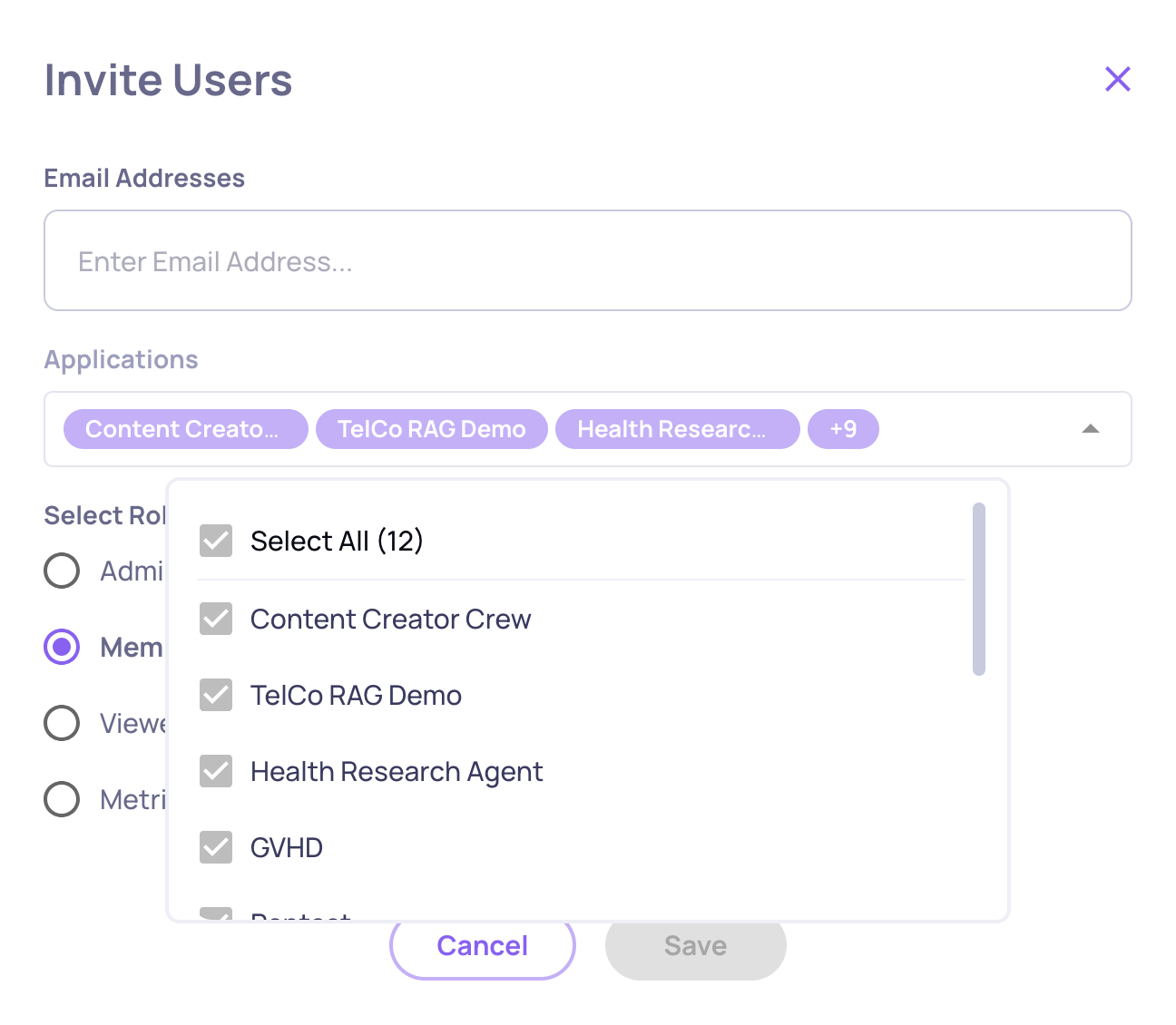
Default Owner Assignment (AWS SageMaker & Self-Hosted Deployments)
In SageMaker and self-hosted deployments, the first user created in the organization is automatically assigned the Owner role.
This ensures that there is always at least one user with permission to:
- Invite additional users
- Assign roles
- Configure critical organization and system settings
- Enable or disable per-app permissions
Owner ChangeNote: Every organization must have at least one Owner at all times to manage configuration changes, invite users, and perform other administrative tasks. As a result, an Owner cannot downgrade their own role unless there is at least one other Owner in the organization.
Updated 3 months ago