
Model Configuration for Self-Hosted Deployments
Configuring Models for Self-Hosted Deployments
In self-hosted deployments, Deepchecks does not provide or host LLMs. All model inference uses models you own and operate - either through managed cloud providers (Azure OpenAI, AWS Bedrock, OpenAI) or self-hosted endpoints.
Why Model Configuration Is Required
Unlike Deepchecks SaaS, self-hosted deployments don't have access to Deepchecks-managed LLMs. You must explicitly configure connections to your models to run evaluations, scoring, and analysis.
Once configured, models become available across the platform:
- Basic and Advanced model selection in Preferences
- Application configuration
- Evaluation workflows
At initial deployment, no models are configured - all model dropdowns will be empty until you add at least one model.
Permissions
Model management is done on the organization level and therefore is restricted to Owners only.
Owners can add, edit, test, and delete models. Other roles can use configured models but cannot manage them.
Accessing Model Management
- Navigate to Preferences
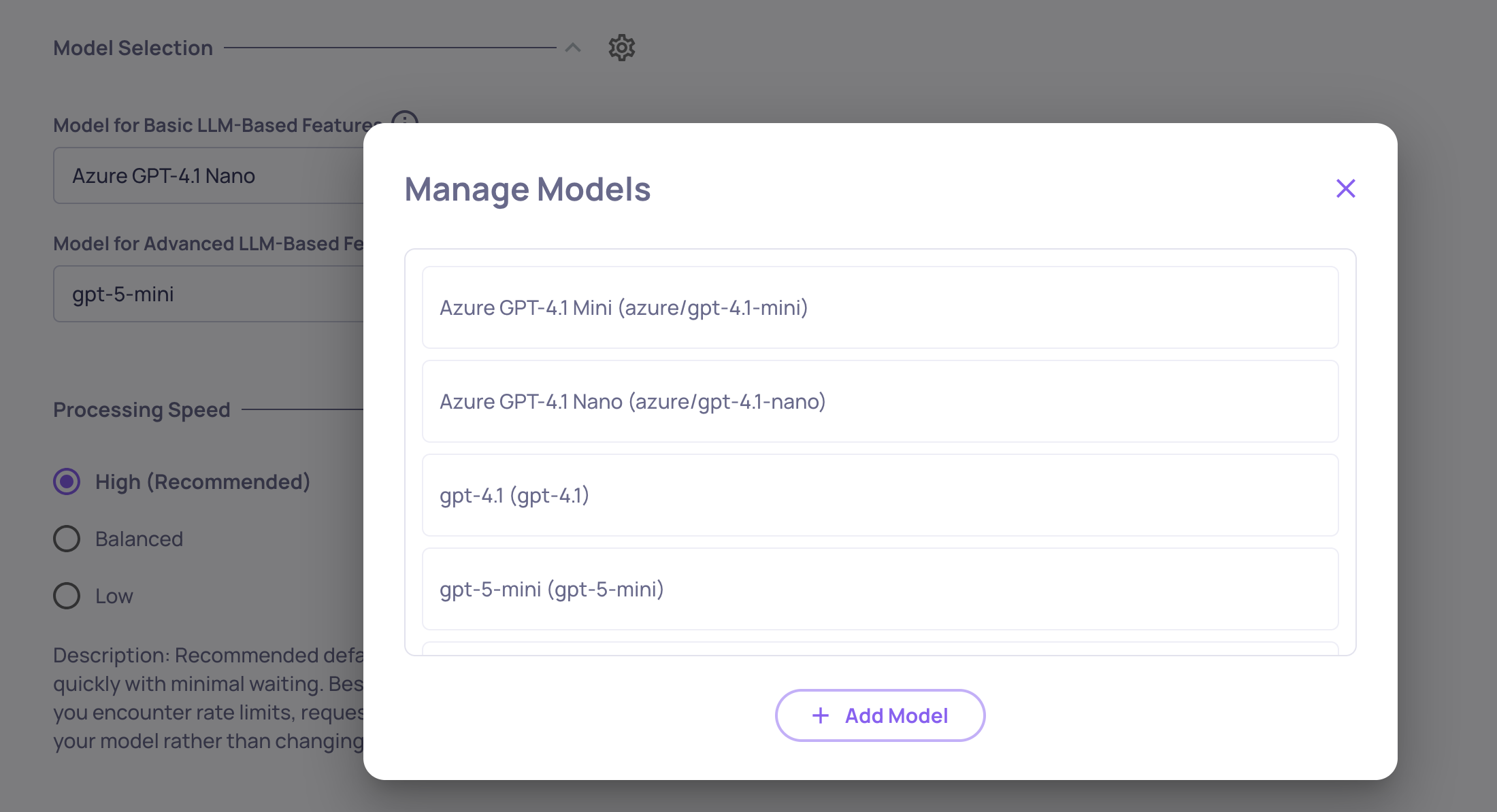
- Click Manage Models
This opens the Manage Models modal where you can view, add, edit, and delete models.
Supported Providers
| Provider | Description |
|---|---|
| OpenAI | OpenAI API |
| Azure | Azure OpenAI Service |
| Bedrock | AWS Bedrock |
| Self-Hosted | Custom endpoints via LiteLLM |
Adding a Model
Click Add Model to expand the form.
OpenAI
| Field | Required | Description |
|---|---|---|
| Model | Yes | Model identifier (e.g., gpt-4, gpt-4o) |
| API Key | Yes | Your OpenAI API key |
| Max Tokens | Yes | Maximum tokens per request |
| Display Name | Yes | Name shown in Deepchecks (max 40 characters, must be unique) |
Azure OpenAI
| Field | Required | Description |
|---|---|---|
| Model | Yes | Model identifier |
| API Key | Yes | Your Azure OpenAI API key |
| API Base | Yes | Azure endpoint URL |
| API Version | Yes | API version (e.g., 2023-05-15) |
| Deployment ID | Yes | Your Azure deployment ID |
| Max Tokens | Yes | Maximum tokens per request |
| Display Name | Yes | Name shown in Deepchecks (max 40 characters) |
AWS Bedrock
| Field | Required | Description |
|---|---|---|
| Model | Yes | Model ARN or identifier |
| API Key | No | Bearer token (optional, uses AWS credentials in Hadron) |
| Max Tokens | Yes | Maximum tokens per request |
| Display Name | Yes | Name shown in Deepchecks (max 40 characters) |
Self-Hosted (LiteLLM Supported only)
Deepchecks supports self-hosted model endpoints compatible with LiteLLM.
| Field | Required | Description |
|---|---|---|
| Model | Yes | Model identifier (e.g., ollama/mistral, llama-3) |
| API Base | Yes | Endpoint URL (e.g., http://localhost:8000/v1) |
| API Key | No | Only if your endpoint requires authentication |
| Max Tokens | Yes | Maximum tokens per request |
| Display Name | Yes | Name shown in Deepchecks (max 40 characters) |
Saving a Model
When you click Save, Deepchecks:
- Validates all required fields
- Tests connectivity to the model
If successful, the model appears immediately in all model dropdowns. If connection fails, the model is not saved and the form remains open for corrections
Editing a Model
Hover over any model in the list and click the Edit button. You can modify all fields except the provider type.
Testing Connection
Click Test Connection on any existing model to verify connectivity. The test sends a simple prompt and validates the response.
Deleting a Model
- Hover over the model and click Delete
- Confirm in the dialog
If the model is currently in use, the confirmation will warn you. When deleted:
- The model is removed from the database
- The model is removed from all application dropdowns
- If it was in use, the system selects another available model
Updated 4 months ago