DocumentationAPI ReferenceRelease Notes
DocumentationLog In
Documentation

Know Your Agent - Deepchecks Agent Evaluation

Learn how to test and evaluate your AI agent end-to-end - from configuring deployments and generating test data, through automated simulation, to component-level evaluation and root-cause analysis.

Modern AI applications increasingly rely on agentic and multi-agent workflows - systems that reason, plan, delegate, call tools, and interact across multiple steps before producing an output. These workflows are powerful, but they also introduce complexity: where did the reasoning go wrong? Why did the agent pick this tool? Was the plan efficient? Which branch of the workflow created the failure?

To answer these questions, teams need complete observability across spans, traces, and sessions, and evaluation that understands the logic of agentic pipelines. Deepchecks provides a full suite of capabilities designed specifically for this.

The KYA Flow

Know Your Agent (KYA) is Deepchecks' end-to-end testing and evaluation pipeline for AI agents. It takes you from a deployed agent to a full diagnostic report - covering test data generation, automated execution, structured logging, component-level evaluation, and root-cause analysis.

The flow consists of the following stages:

  1. Deployment Configuration - Connect your agent's endpoint and configure execution settings
  2. Dataset Generation - Generate diverse test scenarios with AI, or curate them manually
  3. Simulation Execution - Run the dataset against your agent via the UI or SDK
  4. Logging & Instrumentation - Automatically capture every span, tool call, and LLM invocation via OpenTelemetry
  5. Agentic Evaluation - Score each component with built-in and custom properties
  6. Root-Cause Analysis - Pinpoint failing components and get categorized failure modes with actionable fixes

The sections below start with evaluation and analysis - the core of what makes KYA powerful - then walk through the setup and execution steps that feed into them.

Agentic Evaluation

Once your agent's execution data is logged, Deepchecks automatically evaluates every layer of the agent architecture independently. This is what separates KYA from simple observability: not just seeing what happened, but scoring each component on quality and operational metrics.

The Overview Dashboard

The overview screen gives you a top-down view of your agent's performance across every component. It displays:

  • Overall version score - a single aggregated quality score for the entire version
  • Component-level breakdown - individual scores for each agent, tool, LLM, and session-level metrics
  • System metrics - cost, latency, and token usage aggregated per component

You can view these metrics at different levels of granularity. At the full version level, you see averages across all interactions. You can also filter by specific span names - for example, comparing your "Planning Agent" against your "Execution Agent" - to immediately identify which component is underperforming.

This multi-level view makes it possible to go from a high-level version score to the exact component dragging performance down, in a single screen.

Sub-Component Analysis

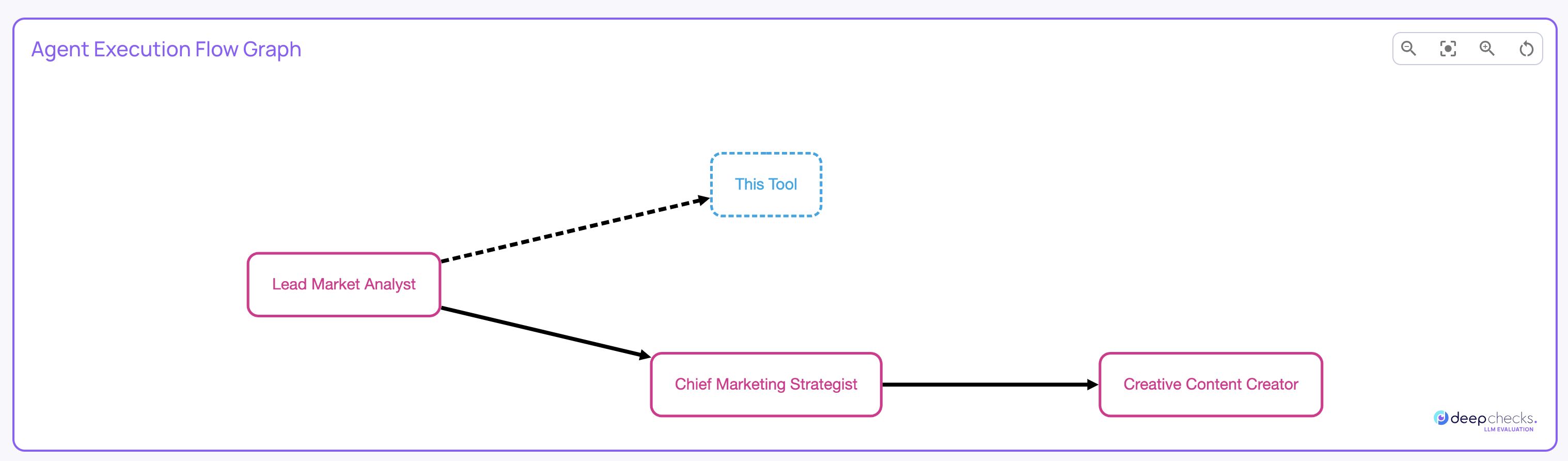
From the overview, you can drill into any individual agent to see its sub-components in isolation. For example, clicking into a search agent would show its child tool executions and LLM calls - with scores and system metrics scoped only to that agent, not the entire version.

This scoping is what makes the analysis actionable. If your application has hundreds of LLM calls across multiple agents, you need to know which calls belong to which agent. Deepchecks tracks these relationships automatically, so when you analyze a specific agent's LLM performance, you're looking only at its calls - not noise from the rest of the system.

The system metrics view also catches operational anomalies that quality metrics alone would miss, such as a trace with abnormally high latency (suggesting a tool-calling loop) or zero input tokens (indicating the LLM was never invoked).

Inspection of the Coordinator's sub-agents, tools and LLM calls

Span-Level and Session-Level Evaluation

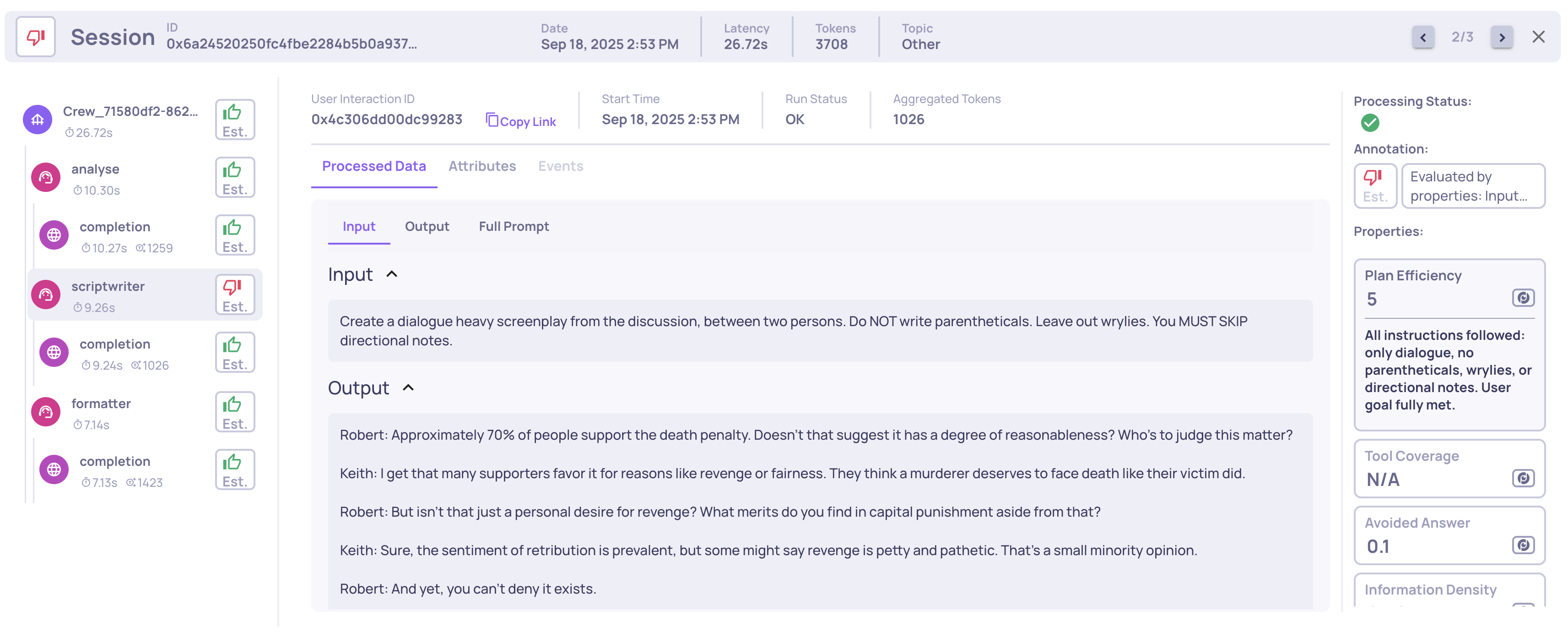
Drilling into any session reveals the full trace hierarchy - for example, a coordinator delegates to sub-agent, which calls its LLM, invokes tools, processes results, returns. Each span is independently evaluated on:

  • Quality metrics (Properties) - Instruction Following, Reasoning Integrity, Tool Coverage, and more - each with natural-language reasoning, not just a number
  • System metrics - Latency, token count, and cost per span

If any score falls below a configurable threshold, the span is automatically flagged - no manual review needed.

Deepchecks also evaluates at the session level. A metric like Intent Fulfillment looks at the entire multi-turn conversation holistically. In many cases, individual spans score fine - but the session-level metric catches that the agent never actually delivered on the user's request. Span-level and session-level evaluation together surface problems that either one alone would miss.

Single LLM call system metrics and properties

Built-In Agentic Properties

Deepchecks provides built-in properties designed specifically for evaluating Agent, Tool, and LLM interactions at the span (interaction) level. These properties help answer questions such as: Did the agent follow an effective plan? Did the tools provide the coverage needed? Did each tool response fully satisfy its purpose?

The following properties are available out of the box:

Agent Interaction Type

  • Plan Efficiency - Scores 1–5 how well the agent's execution aligns with its stated plan. Evaluates whether the agent built a clear plan, carried it out correctly, and adapted when needed. Lower scores highlight skipped steps, contradictions, or unresolved requests.

  • Tool Coverage - Scores 1–5 how well the set of tool responses covers the overall goal. Reflects whether the evidence gathered is sufficient to fulfill the agent's main query.

  • Tool Abuse - Scores 1–5 whether the agent used each tool and sub-agent efficiently. Evaluates redundancy (unnecessary repeated calls), error adaptation (adjusting after failures), and progress between invocations. Scored per direct child tool or sub-agent.

  • Instruction Following - Scores 1–5 how well the agent adheres to all instructions, including system messages and user inputs. Evaluates alignment with requirements, completeness, and formatting.

Tool Interaction Type

  • Tool Completeness - Scores 1–5 how fully a single tool's output fulfills its intended purpose. Strong completeness means the tool produced a usable, correct, and thorough response.

LLM Interaction Type

  • Instruction Following - Same property as on Agent spans, evaluating adherence to prompt instructions.

  • Reasoning Integrity - Scores 1–5 how well the LLM reasons in a single step. Evaluates context understanding, decision-making (tool choice), and logical consistency.

📘

General Built-In Properties and Custom Properties

Note: These are interaction-level (span) properties evaluated on each individual span. They complement Deepchecks' general built-in properties, and you can also define custom properties tailored to your specific needs.

Example of a Planning Efficiency score and reasoning on an Agent span

Example of a Planning Efficiency score and reasoning on an Agent span

Advanced Controls for Agentic Evaluation

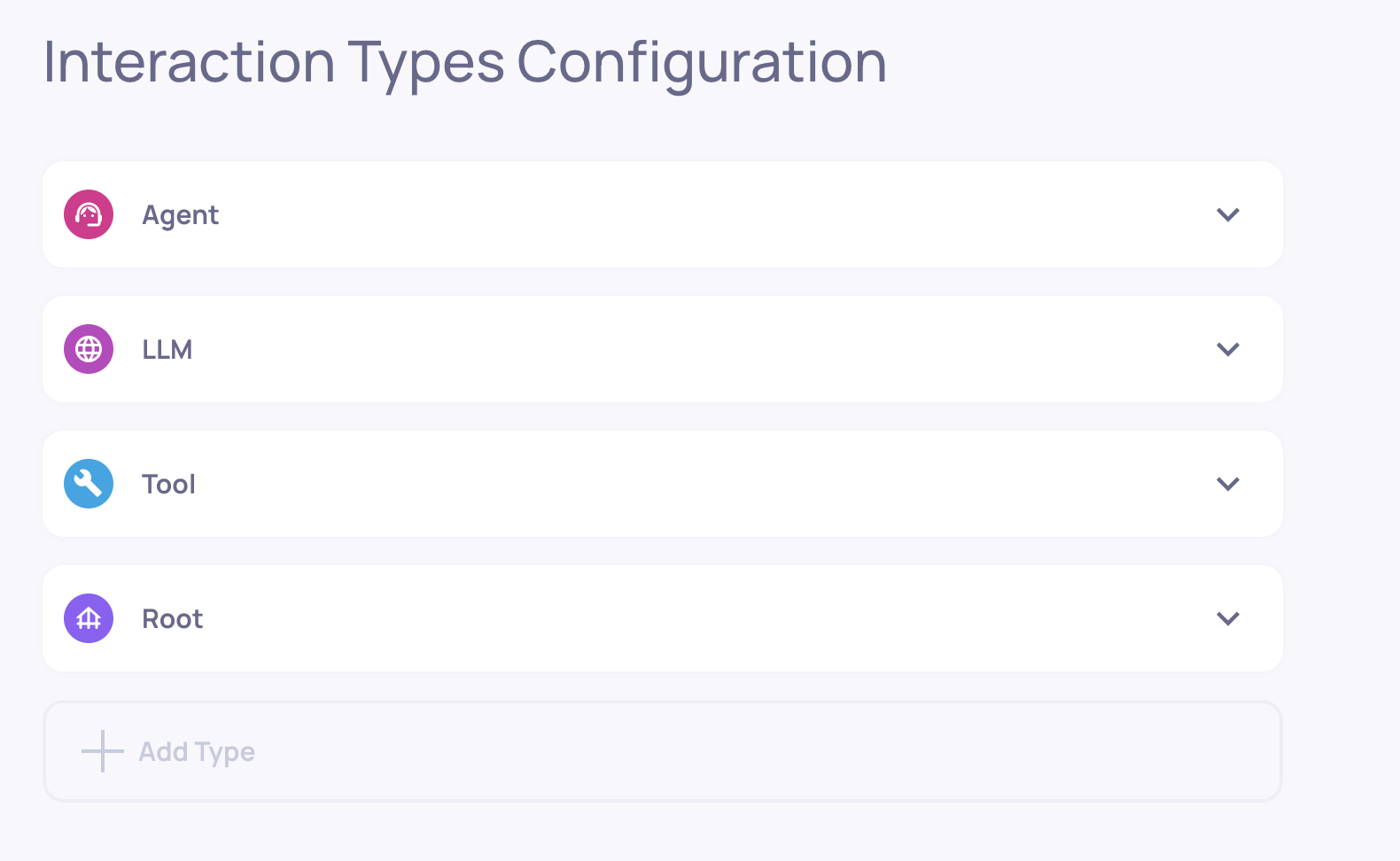
Mapping Spans to Custom Interaction Types

Sometimes your system has custom steps that don't fit the default categories. For example, you might want a "Planning" agent and an "Executing" agent to have different configurations - even though both are Agent interaction type by default.

Deepchecks allows you to map spans to custom interaction types, which immediately updates the configuration, enabling different properties, auto-annotation rules, and displays to apply. This ensures every span is evaluated using the right semantics for your workflow. See the step-by-step guide.

Custom Prompt Properties Using Descendant Data

Agent and Root spans may need access to the data of their child spans - tool inputs, LLM outputs, retriever documents, etc. Deepchecks allows prompt properties to freely access all descendant spans, enabling root-level (trace-level) metrics, agent-level quality scores, and cross-span calculations.


Root-Cause Analysis

Knowing which component is failing is the first step. Root-cause analysis answers why , and gives you actionable next steps.

One-Click Failure Mode Analysis

With an underperforming component identified, click the "Analyze Failure Modes" button on the Overview screen.

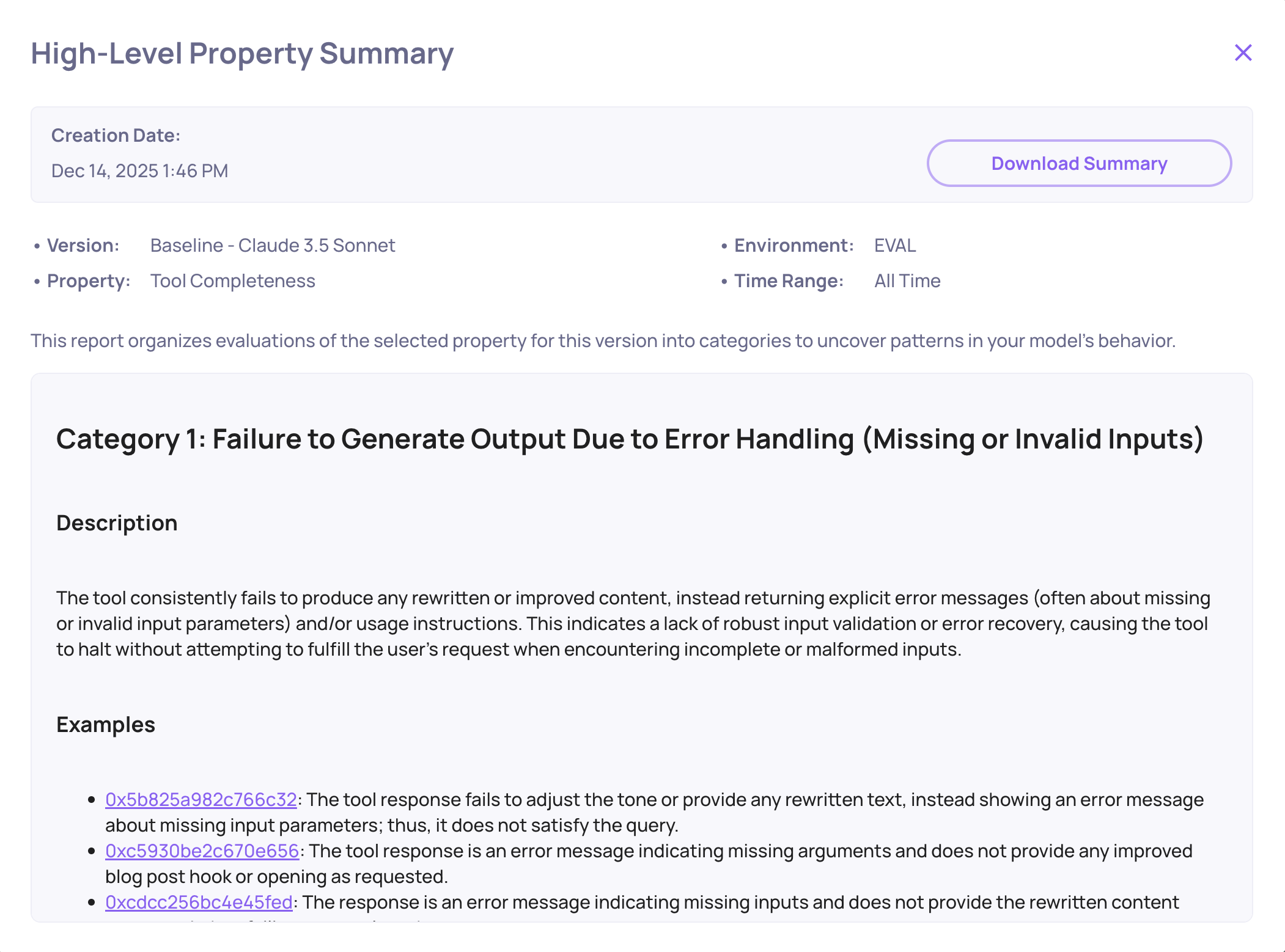
The failure mode analysis can be performed on any level (for the entire version, through a specific agent, to a specific tool used by an agent). Within seconds Deepchecks generates a structured report with:

  • Categorized failure patterns - e.g., "Incomplete Retrieval", "Tool Misuse", "Inefficient Planning"
  • Concrete failing examples from your data, with click-through to the exact span
  • Actionable recommendations - not generic advice, but specific suggestions derived from the actual failure patterns (e.g., tightening the agent's role description or adjusting search query formulation)

Tool Completeness failure mode analysis example

System-Wide RCA Features

All of Deepchecks' core RCA features work seamlessly with agentic data:

  • Score breakdown across properties, templates, and labels
  • Filtering by agent step, tool type, or execution path on the Interactions or Sessions screen
  • Version comparisons across versions, datasets, or model choices

This helps teams quickly understand why an agent struggled - not just that it did.

The Built-In Insights Feature

Once enough data has been collected, you can generate Insights on-demand from the Overview screen.

Insights provide a structured analysis of your agent's performance across several dimensions:

  • Performance Summary - A concise overview of your version's quality and operational metrics, highlighting key trends and the most impactful areas for improvement
  • Weak Segments - Automatically identifies clusters of interactions where performance drops, surfacing patterns you might not notice manually
  • Recommendation Insights - Actionable, specific suggestions derived from your agent's actual failure patterns - not generic advice, but targeted fixes like adjusting a sub-agent's role description or refining tool invocation logic
  • Suggested Properties - Recommends additional evaluation properties you should enable based on the patterns observed in your data, helping you catch issues your current property set may not cover. These suggestions offer a one-click option to create the suggested property.

Insights can be recalculated at any time as more data flows in, so the analysis stays current as your agent evolves.


The following sections cover the simulation flow - configuring a deployment, generating test data, and running it against your agent. If you're already logging data to Deepchecks and only need evaluation and analysis, the sections above have you covered. Continue below if you want to proactively test your agent by triggering it with controlled test scenarios.

Deployment Configuration

Before running simulations, you need to connect your agent's endpoint. A Deployment defines how Deepchecks communicates with your agent.

Creating a Deployment

Navigate to your the "Manage Application" flow in the Applications screen and go to the Deployments tab. Click Create Deployment and configure:

SettingDescriptionDefault
Deployment NameA descriptive name for this deployment
URLYour agent's HTTP endpoint
TimeoutRequest timeout in seconds (5–300)30
Max ConcurrentMaximum parallel requests (1–20)5
Max RetriesRetry attempts on failure (0–5)2
HeadersOptional auth headers

Deepchecks validates connectivity automatically when you save the deployment. You can always return to the configured deployments and validate their connectivity.


🚧

CORS Note

If you're self-hosting your agent, the browser needs permission to call it from the Simulations UI. Your server must allow CORS requests from Deepchecks origins. Here's an example using FastAPI (If you're using a different framework, configure the equivalent CORS settings to allow origins matching https://*.deepchecks.com).

from fastapi.middleware.cors import CORSMiddleware

allowed_origin_regex = r"https:\/\/([a-zA-Z0-9-]+\.)*deepchecks\.com"

app.add_middleware(
    CORSMiddleware,
    allow_origin_regex=allowed_origin_regex,
    allow_credentials=True,
    allow_methods=["*"],
    allow_headers=["*"],
)

Request Format

When Deepchecks calls your deployment, it sends a POST request with the following body:

{
  "dc_fields": {
    "app_name": "your-app",
    "version_name": "version-to-log-to",
    "env_type": "EVAL",
    "session_id": "unique-session-id"
  },
	"input": "<the sample input from your dataset>",
}

Your agent should use dc_fields to configure its Deepchecks instrumentation (app name, version, environment) so that logged spans are associated with the correct application version. The session_id field is used for multi-turn conversations to link turns within the same session.

Your agent must having a logging integration with Deepchecks to log spans to the platform - otherwise the simulation will trigger your agent but no execution data will be captured for evaluation. See here for more details.


Dataset Generation

Datasets are curated collections of test samples used to systematically evaluate your agent's performance. For a detailed guide on creating and managing datasets, see the Dataset Management page.

AI-Powered Generation for Agents

KYA's AI can automatically generate diverse test inputs tailored to your agent. Go to your application's Datasets page, click Generate by AI, and select the Agents generation mode.

This mode uses dimensional analysis to create scenarios that stress-test your agent across multiple axes - complexity, ambiguity, multi-step reasoning, error recovery, and dimensions specific to your agent's domain. You provide:

  1. Your agent's description (the more detail, the better the test coverage)
  2. Number of samples to generate (up to 50)
  3. Optional guidelines to focus on specific dimensions

Running Simulations

Once you have a deployment and a dataset, you can run the dataset against your agent. Each sample is sent to your agent's endpoint, and the responses, along with all instrumented spans, are logged to Deepchecks.

Via the UI (Simulations Tab)

  1. Go to the Simulations tab in your application
  2. Select the Deployment to run against
  3. Select the Dataset to use
  4. Choose the Version the results will be logged to
  5. Click Run

You'll see real-time progress in the browser - each sample's request/response, success/error counts, and total run time.


📘

SDK alternative

You can also run simulations programmatically via the SDK, which is useful for CI/CD pipelines, when CORS configuration isn't possible, or for any other reason:

pip install "deepchecks-llm-client[widgets]"
from deepchecks_llm_client.client import DeepchecksLLMClient
from deepchecks_llm_client.data_types import EnvType

dc_client = DeepchecksLLMClient(api_token="YOUR_API_KEY")

result = await dc_client.execute_app(
    app_name="my-app",
    version_name="version-to-log-runs-to",
    env_type=EnvType.EVAL,
    dataset_name="my-dataset",
    deployment_name="my-deployment",
    show_progress=True,
)

The execute_app method runs samples in parallel (up to max_concurrent), handles retries automatically, and supports both single-turn and multi-turn datasets. If using a notebook, a live progress widget is displayed.

Multi-Turn Simulations

For agents that handle multi-turn conversations, datasets can include multi-turn samples containing scenarios and personas. During execution, Deepchecks uses an AI-simulated user to generate follow-up messages between turns, creating realistic conversation flows. All turns within a session share a session_id for proper grouping.


Putting It All Together

The power of KYA comes from combining all these stages into a continuous feedback loop:

  1. Configure your deployment and generate test data
  2. Run simulations to exercise your agent across diverse scenarios
  3. Evaluate automatically at every level - span, trace, and session
  4. Analyze failures with one-click root-cause analysis
  5. Fix the identified issues using the actionable recommendations
  6. Re-run on the same dataset to measure improvement

Each iteration tightens the loop, moving from "my agent doesn't work well" to "here's the specific component, the specific failure pattern, and concrete examples to start fixing it."