
Data Fields for Evaluation
When you create a prompt property, you choose which data fields the LLM judge receives. This controls exactly what information goes into the evaluation - and what stays out. Keeping the context focused makes evaluations more accurate and reduces token usage.
You can draw data from two sources:
- The current interaction - fields like input, output, full prompt, retrieved context, etc.
- Child interactions - for agentic workflows, data from nested child interactions (tool calls, LLM sub-calls, etc.) at any depth
Selecting interaction data fields
The following fields are available from the current interaction:
- Input - the user's query or message
- Output - the generated response
- Full Prompt - the complete prompt sent to the LLM
- Information Retrieval - retrieved context or knowledge base content
- History - prior conversation turns
- Expected Output - a reference or ground-truth response
- Custom Fields - any custom data fields defined for your application
Select only the fields your property actually needs. For example, a property evaluating output tone needs only the Output field; a hallucination property needs both the Output and Information Retrieval fields.
Must vs Optional fields
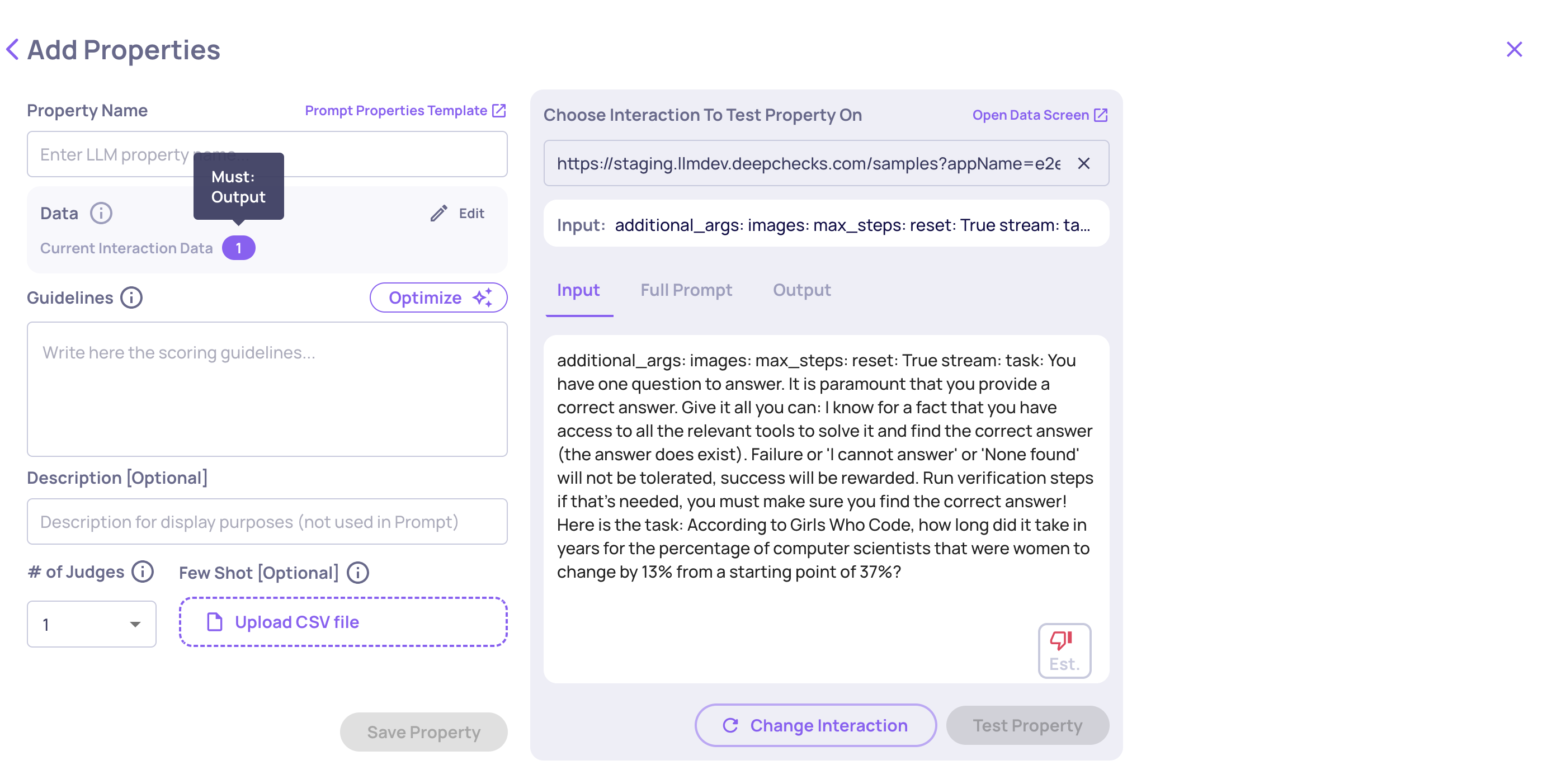
Each selected field is marked as either Must or Optional.
Must - If this field is missing on a specific interaction, the property cannot be calculated. The score returns N/A with an explanation of which field was absent. Use Must for fields that are essential to your evaluation logic.
Optional - If this field is missing, the property still calculates using the available fields. Use Optional for fields that add useful context but aren't strictly required.
Example: A "Response Completeness" property needs both Input and Output to determine if the response fully addressed the question - mark both as Must. A "Response Quality" property that benefits from the full prompt but can work without it - mark Full Prompt as Optional.
Tip: Only mark a field as Must if a missing value truly makes evaluation impossible. Over-using Must leads to N/A scores on interactions that could otherwise be evaluated.
Child interaction data (agentic workflows)
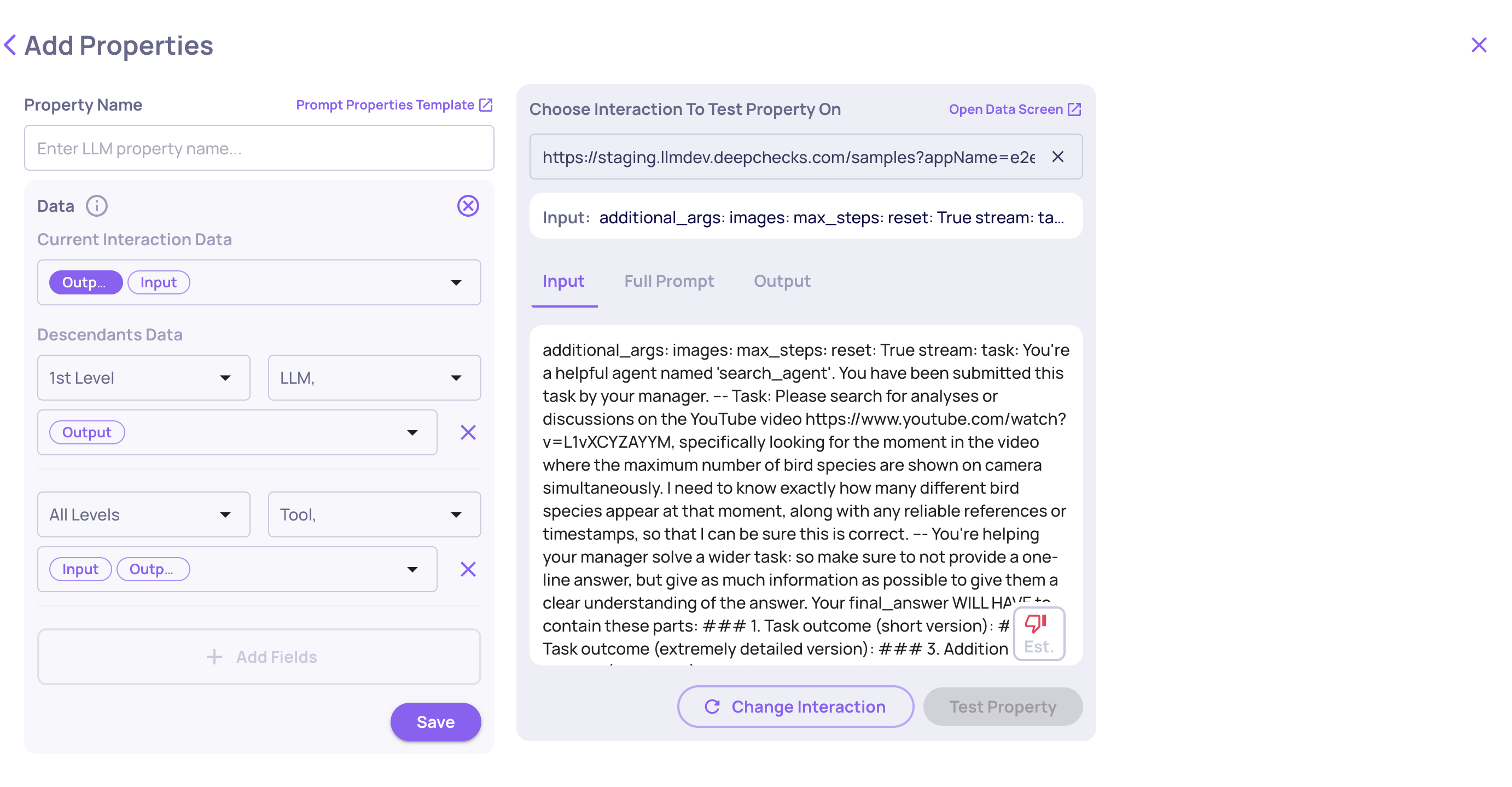
For agentic applications, an interaction can contain nested child interactions - tool calls, LLM sub-calls, retrieval steps, and so on. A prompt property can pull data from those children, not just the top-level interaction.
To access child data, add one or more Scopes to your property. Each scope defines:
-
Depth - how far down the hierarchy to look
- 1 level down - direct children only
- 2 levels down - children and grandchildren
- All levels - all descendants
-
Interaction types - which child interaction types to include (e.g., only Tool interactions, only LLM interactions, or all types)
-
Data fields - which fields to pull from those child interactions (Input, Output, Full Prompt, etc.)
All child interaction fields are treated as Optional - the property calculates even if some children are missing data.
Examples
Evaluate all tool calls in an agent trace
- Depth: All levels
- Types: Tool interactions only
- Fields: Input, Output
Collects data from every tool call anywhere in the hierarchy, letting the property assess the agent's overall tool usage pattern.
Evaluate direct LLM sub-calls
- Depth: 1 level down
- Types: LLM interactions only
- Fields: Output, Full Prompt
Looks only at LLM interactions that are direct children of the current interaction, ignoring deeper levels.
Multi-scope: combine LLM and tool data
- Scope 1: Depth 1, LLM interactions, Output
- Scope 2: Depth All, Tool interactions, Input + Output
Uses two scopes to gather different data from different parts of the hierarchy in a single property evaluation.
Best practices
- Start with the current interaction fields, then add child interaction scopes only if the property genuinely needs hierarchical context
- Use Must sparingly - only for fields without which evaluation is truly meaningless
- Match your architecture - design scopes to reflect how your agent is structured (depth, interaction types)
- Test before saving - use the built-in Test feature to confirm that your field selection produces the scores you expect on real interactions