
Evaluate a RAG Pipeline
End-to-end guide to evaluating a retrieval-augmented generation pipeline in Deepchecks - from uploading data to tuning annotations and comparing versions.
RAG pipelines have a specific failure profile: the model may produce fluent output that is unsupported by the retrieved context, or the retrieval step may return irrelevant chunks that lead the model astray. Deepchecks has built-in properties designed specifically for these failure modes. This guide walks through the full evaluation workflow.
Step 1: Structure your data
For RAG evaluation, the most important field beyond input and output is Information Retrieval - the context chunks your retrieval system returned. This is what Deepchecks uses to evaluate whether the response is grounded in the retrieved content.
Log each interaction with:
from deepchecks_llm_client.client import DeepchecksLLMClient
from deepchecks_llm_client.data_types import EnvType, LogInteraction

dc_client = DeepchecksLLMClient(api_token="YOUR_API_KEY")

dc_client.log_batch_interactions(
    app_name="my-rag-app",
    version_name="v1",
    env_type=EnvType.EVAL,
    interactions=[
        LogInteraction(
            input="What is the refund policy for annual subscriptions?",
            output="Annual subscriptions can be refunded within 30 days of purchase.",
            information_retrieval="Section 4.2: Refund Policy - Annual plans are eligible for a full refund within 30 days. After 30 days, no refunds are issued.",
            full_prompt="You are a support assistant. Use the provided context to answer.",
            expected_output="Annual subscriptions are refundable within 30 days."  # optional
        )
    ]
)
Key fields:
input- the user's question (required)output- your model's response (required)information_retrieval- the retrieved context passed to the model (required for RAG properties)full_prompt- the complete prompt including system instructions (recommended)expected_output- a reference answer, if you have one (enables Expected Output Similarity)
If you're uploading a CSV, include information_retrieval columns.
Step 2: Enable Document Classification (optional but recommended)
Deepchecks can classify every retrieved document as Platinum, Gold, or Irrelevant based on how much of the information needed to answer the query it contains:
- Platinum - contains everything needed for a complete answer
- Gold - contains relevant information but not the full picture
- Irrelevant - does not help answer the query
Document classification is disabled by default to prevent unintended usage. To enable it, go to Manage Applications → Edit Application and turn it on there. Once enabled, Deepchecks runs the classification step alongside regular property evaluation and unlocks the additional retrieval properties described below.
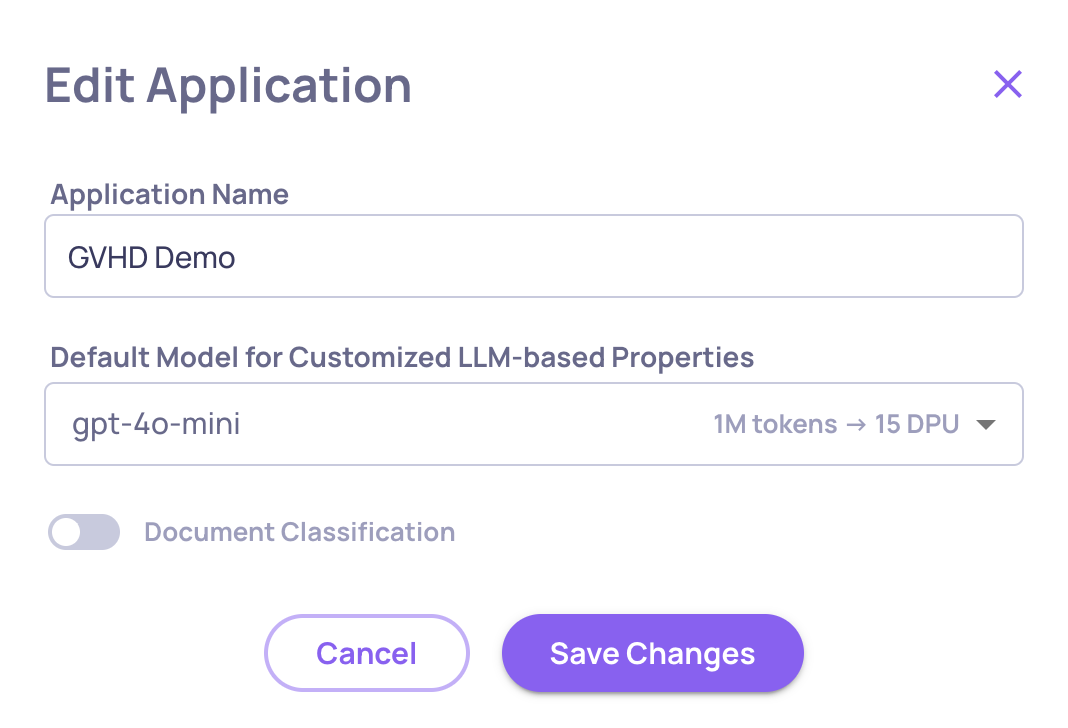
Enabling/Disabling the Classification on the "Edit Application" Window
→ See RAG Use-Case Properties for a full description of document classification.
Step 3: Check RAG-specific properties
Once your data is uploaded and evaluated, review these properties:
Always available
Grounded in Context - Measures whether the response is supported by the retrieved context. A low score means the model is generating content not present in the chunks - hallucination. This is usually the primary failure mode in RAG.
Retrieval Relevance - Measures whether the retrieved chunks are actually relevant to the user's question. A low score means your retrieval step is returning poor results, which will degrade every downstream answer regardless of how good your model is.
Expected Output Similarity - If you have reference answers, this measures semantic closeness to the expected output. Useful for regression testing across versions.
Available when document classification is enabled
nDCG (Normalized Discounted Cumulative Gain) - Scores 0-1 how well the retrieved documents are ranked by relevance. A low score means relevant documents are buried below irrelevant ones.
Retrieval Coverage - Scores 0-1 whether the retrieved Gold and Platinum documents collectively contain all the information needed to answer the query. A low score means your retrieval is missing key pieces.
Retrieval Utilization - Scores 0-1 how much of the relevant retrieved content actually made it into the model's output. A low score means the model is ignoring useful information it had access to.
Retrieval Precision - The proportion of retrieved documents that are Gold or Platinum. Low precision means too many irrelevant documents are being passed to the model.
# Distracting - The number of irrelevant documents ranked above relevant ones. A high value suggests a ranking or re-ranking problem.
MRR (Mean Reciprocal Rank) - Scores 0-1 how early the first relevant document appears in the ranked results. A low score means your retrieval is making the model dig to find relevant content.
# Retrieved Docs - Total number of documents retrieved (the K in top-K). Useful as a filter dimension in root cause analysis.
Go to the Overview screen and pin the properties most relevant to your failure mode. Grounded in Context and Retrieval Relevance are included in the default RAG configuration; the classification-based properties activate once document classification is enabled.
Step 4: Diagnose specific failures
If Grounded in Context scores are low:
- Open failing interactions in the session view and check the Information Retrieval field alongside the Output field
- Look for hallucinated entity names, statistics, or policy details not present in the chunks
- Run failure mode analysis on the Grounded in Context property to see if there are patterns (e.g., failures cluster around specific topics or query types)
If Retrieval Relevance scores are low:
- Check whether your retrieval is using the right index or embedding model
- Look for queries where the retrieved chunks come from unrelated sections of your knowledge base
- Consider adding a reranking step before generation
If nDCG is low with high # Distracting:
- Relevant documents exist but your ranking model is burying them - investigate your re-ranking strategy
If Retrieval Coverage is low:
- The retrieved documents don't contain what's needed - your knowledge base may be missing content, or K is too small
If Retrieval Precision is low but Coverage is high:
- You're retrieving enough relevant content but also a lot of noise - reduce K or improve your ranking
Step 5: Configure auto-annotation for RAG
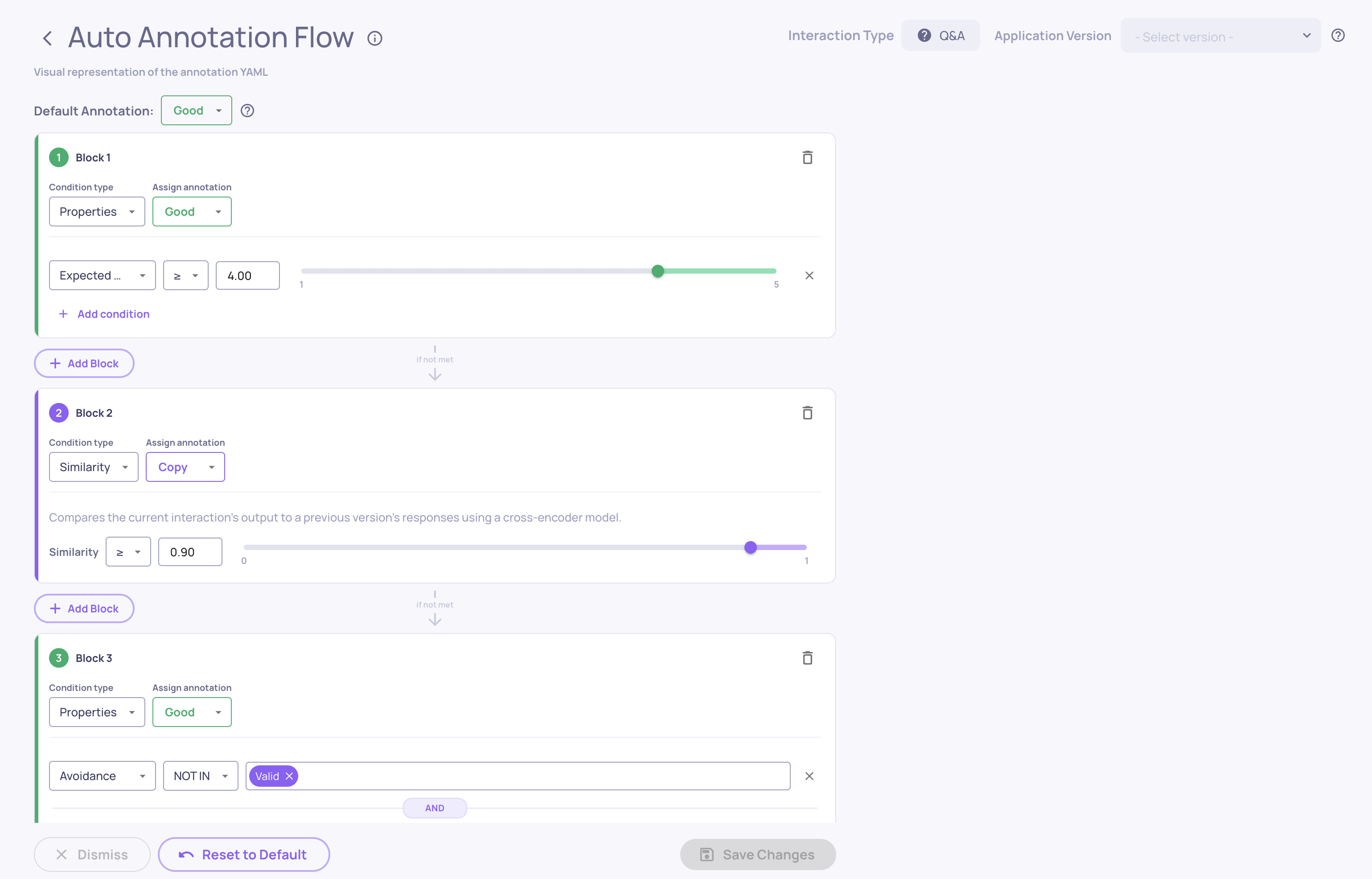
The default annotation pipeline works for RAG, but tune the thresholds based on what you see in Step 4. Go to Configure Auto Annotation in the UI and use the visual threshold editor to set the score cutoff for each property - the histogram view shows you where good and bad interactions separate naturally.
→ See Configure Auto Annotation for the full guide.
Step 6: Compare RAG versions
When you make changes - swap the embedding model, change chunk size, add a reranker, update the system prompt - upload the new version against the same evaluation set and compare:
- Check if Grounded in Context, Retrieval Relevance, and coverage/precision averages improved
- Run granular comparison to see which inputs changed (improved or regressed)
- Use failure mode analysis on the new version to see if the failure patterns shifted
The goal is to confirm your change actually fixed the retrieval or grounding problem without introducing new ones.
→ See Run a Version Comparison for the step-by-step comparison workflow.
Updated 4 months ago