
Quickstart: SDK
Send your first interactions to Deepchecks and see evaluation and observability results in under 5 minutes, using the Python SDK.
This quickstart gets you from zero to seeing real evaluation and observability results in under 5 minutes. You will install the SDK, send a few sample interactions, and see quality scores, automatic annotations, and operational metrics appear in the Deepchecks UI.
No existing LLM pipeline needed - the sample data below works out of the box.
Step 1: Install the SDK
Install the Deepchecks Python SDK:
pip install deepchecks-llm-clientDeepchecks on SageMaker users: You need a version-pinned install with extra dependencies. See SDK Installation for SageMaker for the specific install command and additional environment variables required.
Step 2: Get your API key
Log in to the Deepchecks app and generate an API key:
-
Click your profile icon in the top right corner
-
Go to the API Key tab
-
Click Generate and copy the key
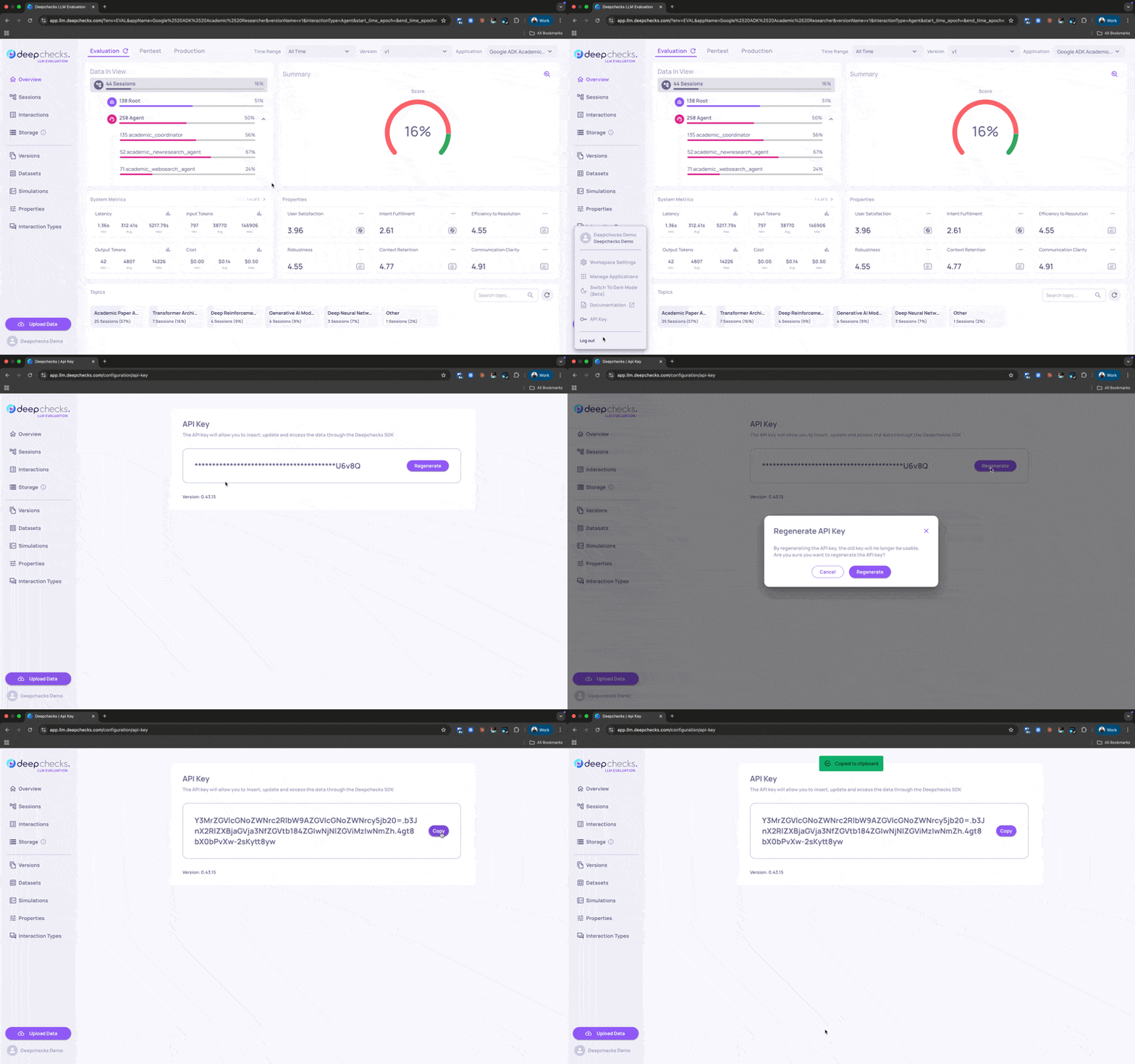
Don't have an account yet? Sign up here to get access.
Step 3: Send your first interactions
Copy the entire code block below into a Python script or Jupyter notebook. Replace "your-api-key-here" with the key you just generated, then run it.
from deepchecks_llm_client.client import DeepchecksLLMClient
from deepchecks_llm_client.data_types import LogInteraction, EnvType, ApplicationType

# Connect to Deepchecks - paste your API key below
dc_client = DeepchecksLLMClient(api_token="your-api-key-here")

# Create your first application (safe to re-run - skips if it already exists)
dc_client.create_application("My First App", app_type=ApplicationType.QA)

# Define a few sample interactions
interactions = [
    LogInteraction(
        user_interaction_id="1",
        input="What is your return policy?",
        output="You can return any item within 30 days of purchase with a receipt.",
        started_at="2025-01-01T10:00:00+00:00",
        finished_at="2025-01-01T10:00:01+00:00",
    ),
    LogInteraction(
        user_interaction_id="2",
        input="How do I track my order?",
        output="Log in to your account and visit the Orders section to track your shipment.",
        started_at="2025-01-01T10:00:02+00:00",
        finished_at="2025-01-01T10:00:03+00:00",
    ),
    LogInteraction(
        user_interaction_id="3",
        input="Do you offer free shipping?",
        output="I'm not able to provide information about that.",
        started_at="2025-01-01T10:00:04+00:00",
        finished_at="2025-01-01T10:00:05+00:00",
    ),
]

# Upload to Deepchecks
dc_client.log_batch_interactions(
    app_name="My First App",
    version_name="v1",
    env_type=EnvType.EVAL,
    interactions=interactions,
)

print("Done! Open Deepchecks to see your results.")
That is all the code you need. Deepchecks will process the interactions in the background and start calculating scores automatically.
Tip: For production use, store your API key as an environment variable (
DEEPCHECKS_API_KEY) rather than hardcoding it.
Step 4: See your results in the UI
Go back to the Deepchecks app in your browser. Click into My First App and select version v1.
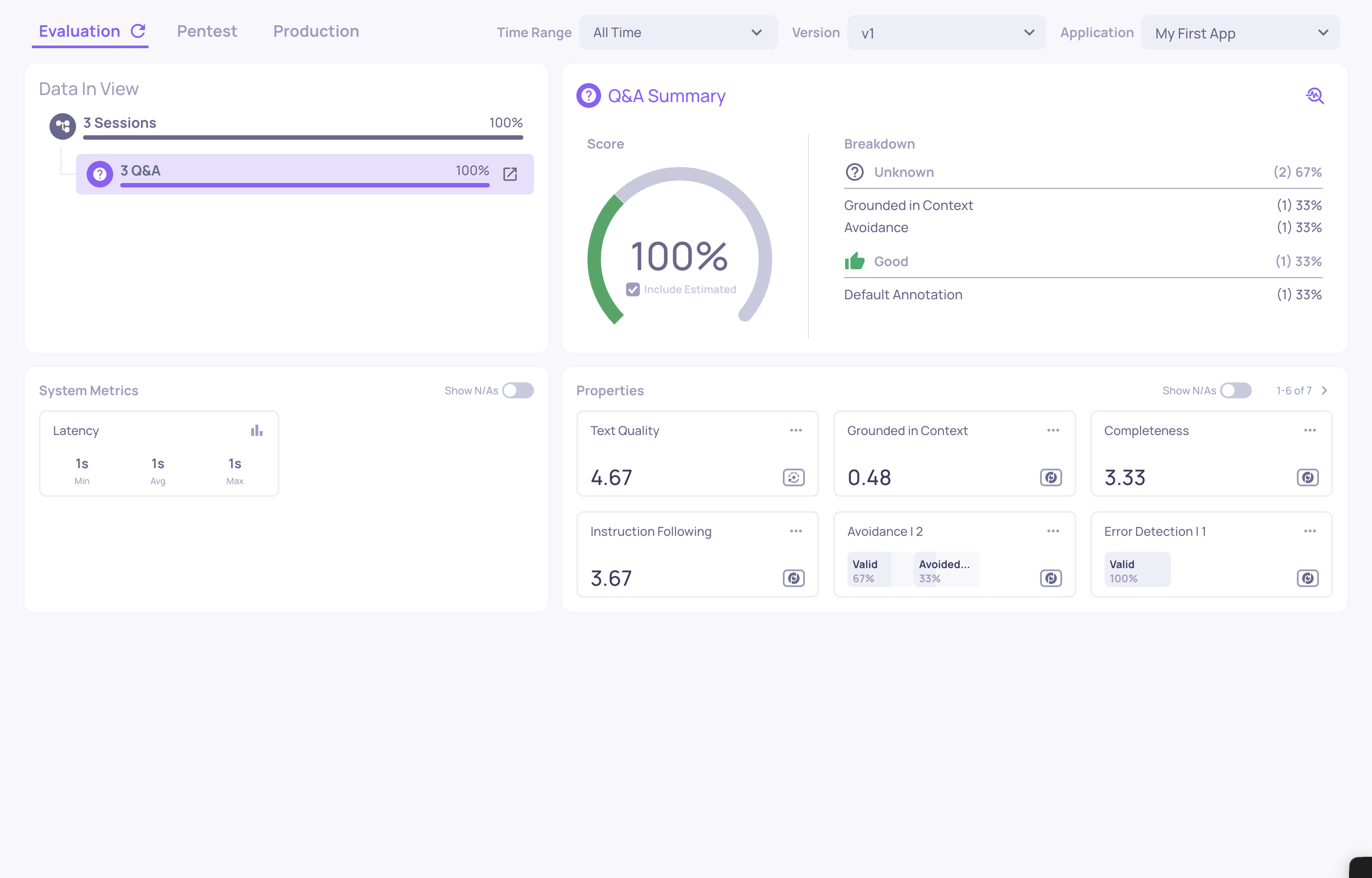
Here is what Deepchecks calculated for you automatically:
Quality metrics (Properties)
Properties are quality metrics calculated on every interaction. You will see scores for things like:
- Grounded in Context - does the answer rely on retrieved information or hallucinate?
- Avoided Answer - did the model dodge the question instead of answering? (interaction 3 above intentionally triggers this)
- Fluency - is the text grammatically well-formed?
- Sentiment - what is the tone of the response?
Each property produces a numeric or categorical value per interaction, visible in the Properties section and on the Interactions screen.
Estimated annotations
Based on property scores and default rules, Deepchecks automatically assigns a Good or Bad label to each interaction. These appear as outlined badges - no human review needed to get a quality signal. The third interaction above (an avoided answer) should be estimated as Bad.
System metrics (Observability)
Because you included started_at and finished_at timestamps, Deepchecks automatically calculated latency for each interaction. In a real pipeline, you can also log token counts and model cost - giving you a live observability view of your system's operational health alongside quality evaluation.
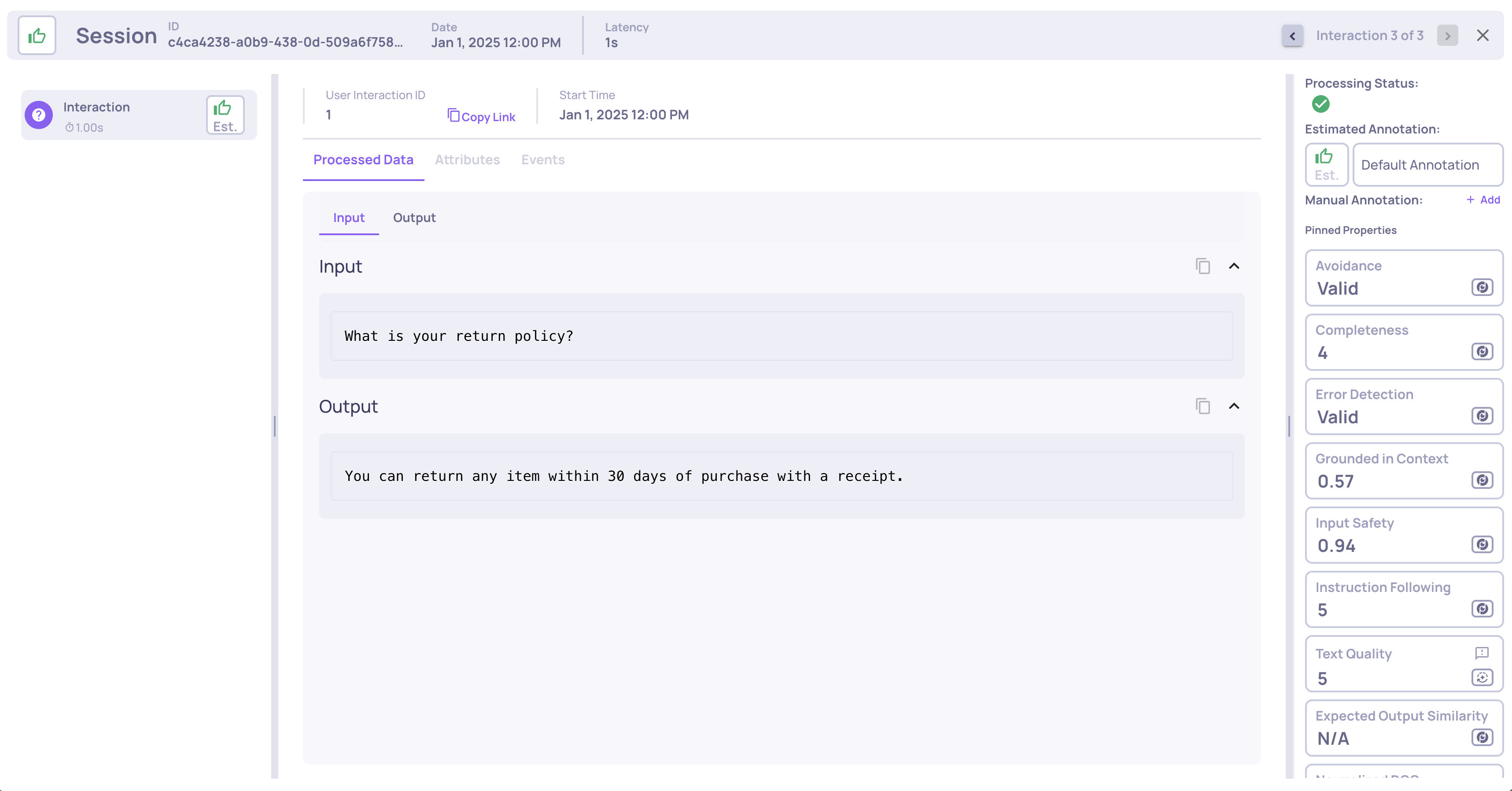
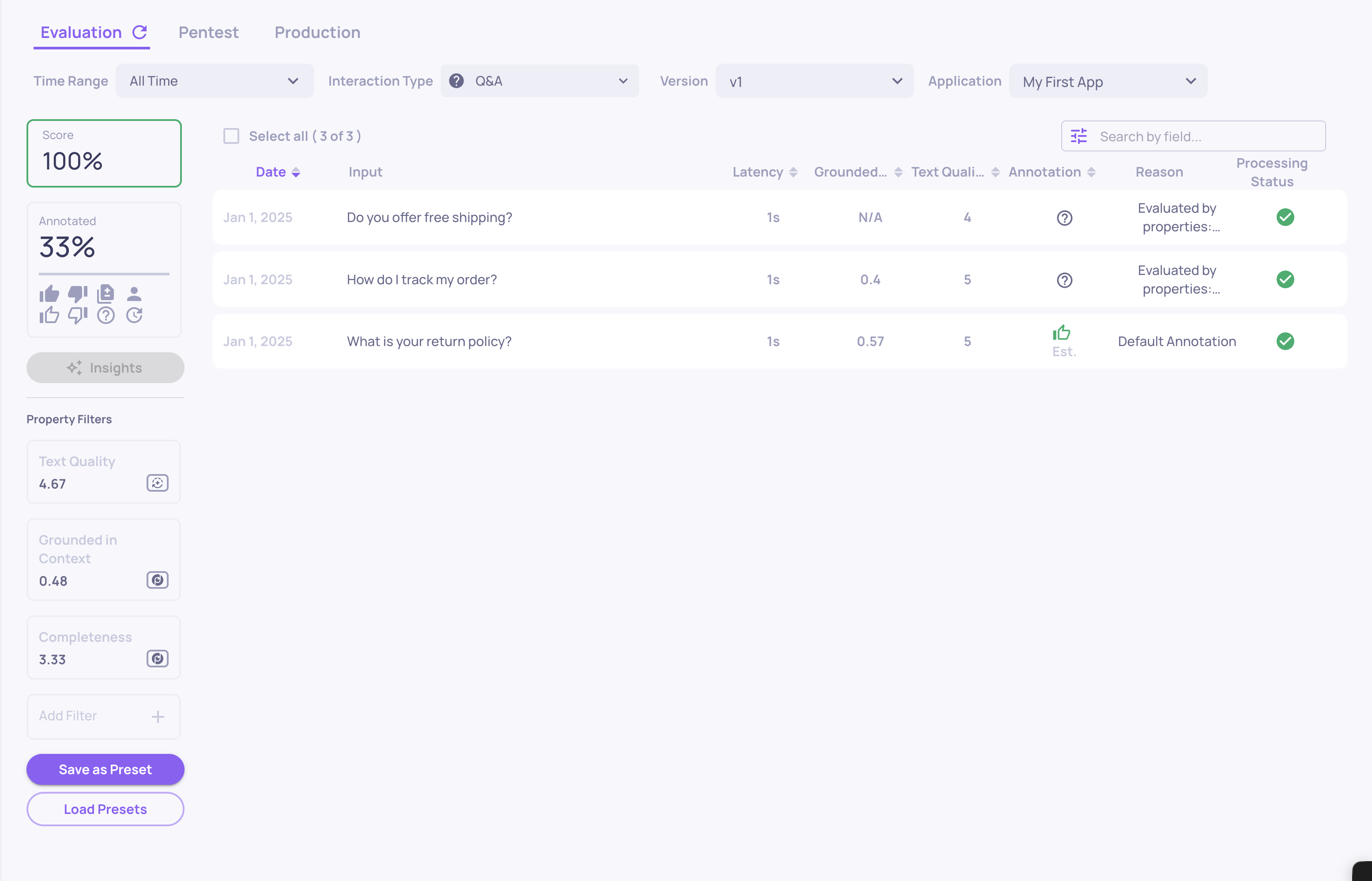
Note: Property calculation runs asynchronously. If you don't see scores immediately, wait a moment and refresh. LLM-based properties take longer than text-based ones.
Updated 3 months ago