
Run Agent Simulations (KYA)
How to proactively test your agent using Know Your Agent (KYA) - configure a deployment, generate test scenarios with AI, and run them against your agent at scale.
Know Your Agent (KYA) is Deepchecks' simulation pipeline for proactively testing AI agents. Instead of waiting for production data, you connect your agent's endpoint, generate a dataset of test scenarios, and trigger your agent against them automatically - capturing every span for evaluation.
This guide covers the simulation setup. For understanding the evaluation results and failure analysis, see Evaluate an Agent.
Step 1: Configure a Deployment
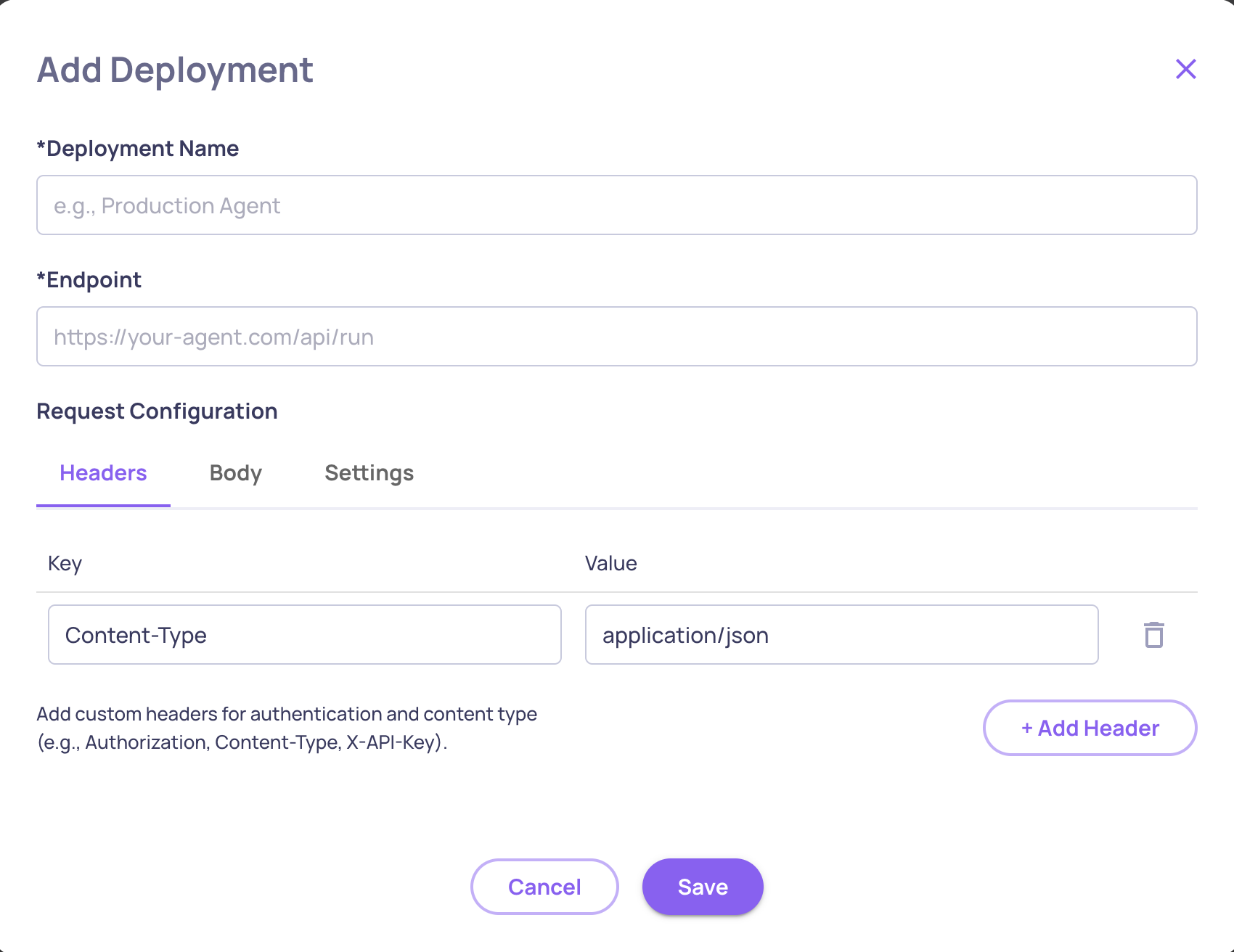
A Deployment tells Deepchecks how to communicate with your agent's HTTP endpoint.
- Go to Manage Applications → Edit Application → Deployments tab
- Click Create Deployment and configure:
| Setting | Description | Default |
|---|---|---|
| Deployment Name | A descriptive name | - |
| URL | Your agent's HTTP endpoint | - |
| Timeout | Request timeout in seconds (5-300) | 30 |
| Max Concurrent | Maximum parallel requests (1-20) | 5 |
| Max Retries | Retry attempts on failure (0-5) | 2 |
| Headers | Optional auth headers | - |
Deepchecks validates connectivity automatically when you save. You can return to configured deployments at any time to test connectivity.
Request format
When Deepchecks calls your deployment, it sends a POST request:
{
  "dc_fields": {
    "app_name": "your-app",
    "version_name": "version-to-log-to",
    "env_type": "EVAL",
    "session_id": "unique-session-id"
  },
  "input": "<the sample input from your dataset>"
}
Your agent should use dc_fields to configure its Deepchecks instrumentation, so logged spans are associated with the correct version. Your agent must have a logging integration with Deepchecks - otherwise simulations will trigger your agent but capture no execution data for evaluation. See Upload Agentic Data for setup details.
CORS Note: If you're self-hosting your agent, your server must allow CORS requests from Deepchecks origins (
https://*.deepchecks.com). Configure the equivalent CORS settings in your framework.
Step 2: Generate a Test Dataset
You need a dataset of test inputs to run against your agent. You can create one manually, import an existing one, or use AI to generate it.
AI-powered generation (recommended)
KYA's AI generates diverse test scenarios tailored to your agent using dimensional analysis - covering complexity, ambiguity, multi-step reasoning, error recovery, and domain-specific dimensions.
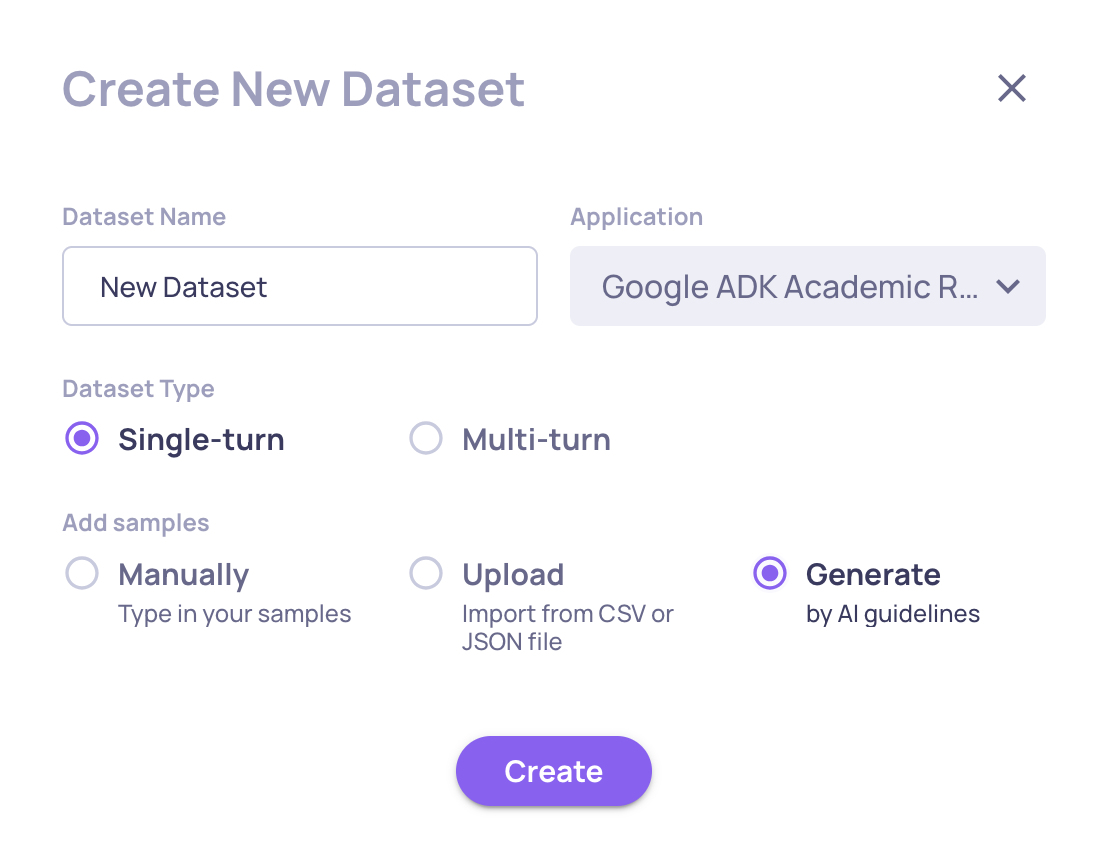
- Go to your application's Datasets page
- Click Generate by AI and select Agents mode
- Provide:
- Your agent's description (be specific - more detail → better coverage)
- Number of samples to generate (up to 50)
- Optional guidelines to focus on specific scenarios
Multi-turn datasets
For agents that handle conversations, datasets can include multi-turn samples with scenarios and personas. During execution, Deepchecks uses an AI-simulated user to generate follow-up messages between turns, creating realistic conversation flows.
→ See Dataset Management for a full guide on creating and managing datasets.
Step 3: Run the Simulation
Via the UI
- Go to the Simulations tab in your application
- Select the Deployment to run against
- Select the Dataset to use
- Choose the Version to log results to
- Click Run
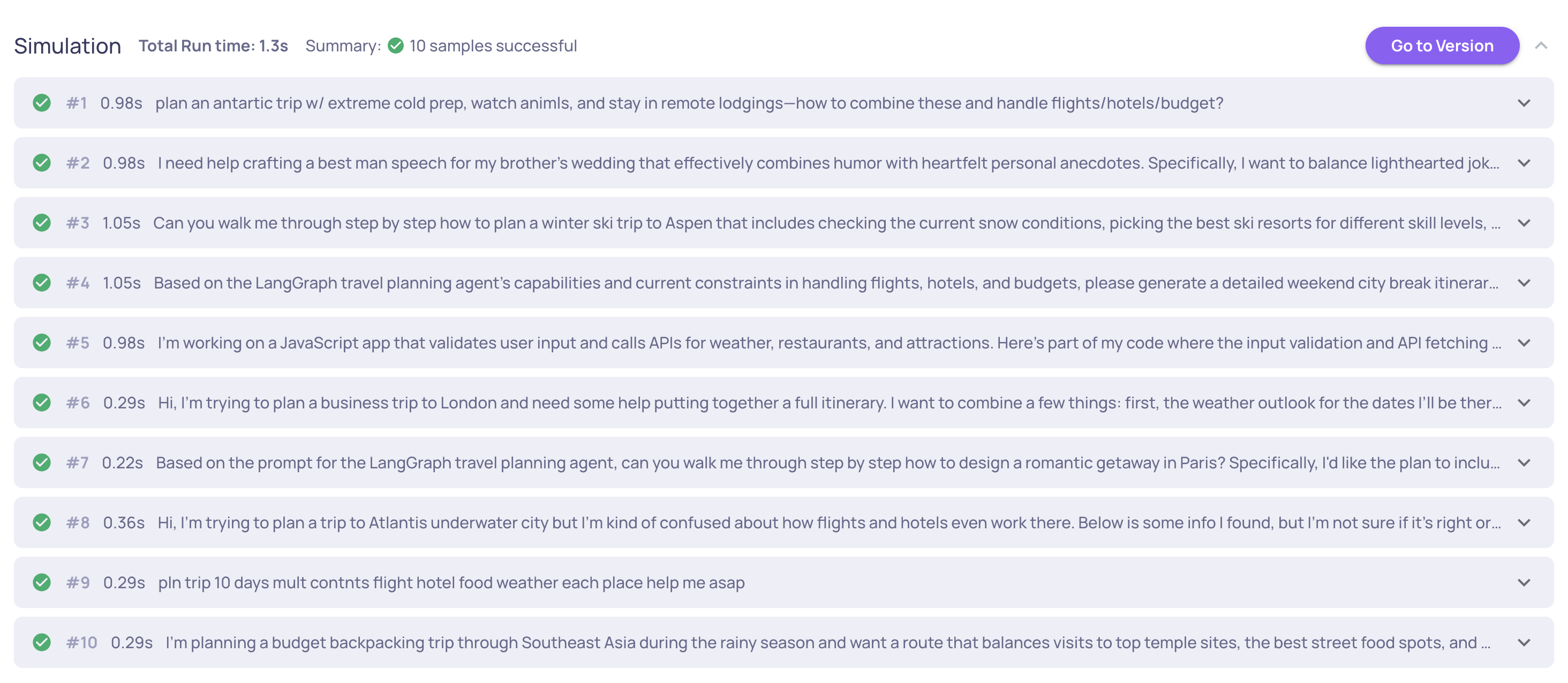
You'll see real-time progress - each sample's request/response, success/error counts, and total run time.
Via the SDK
Useful for CI/CD pipelines or when CORS configuration isn't possible:
pip install "deepchecks-llm-client[widgets]"from deepchecks_llm_client.client import DeepchecksLLMClient
from deepchecks_llm_client.data_types import EnvType
dc_client = DeepchecksLLMClient(api_token="YOUR_API_KEY")
result = await dc_client.execute_app(
app_name="my-app",
version_name="version-to-log-runs-to",
env_type=EnvType.EVAL,
dataset_name="my-dataset",
deployment_name="my-deployment",
show_progress=True,
)The execute_app method runs samples in parallel (up to max_concurrent), handles retries automatically, and supports both single-turn and multi-turn datasets. In a notebook, a live progress widget is displayed.
What happens next
Once the simulation completes, every span your agent produced is logged and evaluated automatically. You can:
- Review results in the Overview screen - component-level scores, system metrics
- Drill into individual sessions to inspect traces
- Run failure mode analysis to identify what went wrong
→ See Evaluate an Agent for the full evaluation and analysis workflow.
Updated 3 months ago