
Quickstart: UI
Upload a CSV file and explore Deepchecks evaluation results without writing any code - in just a few minutes.
This quickstart shows you how to get evaluation results in Deepchecks without writing any code. You will create an application, upload a sample CSV file, and explore the results - all from the Deepchecks platform.
This is the fastest way to see what the platform looks like with real data.
Don't have an account yet? Sign up here to get access.
Step 1: Create your first application
Log in to the Deepchecks app. If this is your first time, you will be prompted to create an application right away. If you have used the app before, click Manage Applications in the left sidebar and then Create Application.
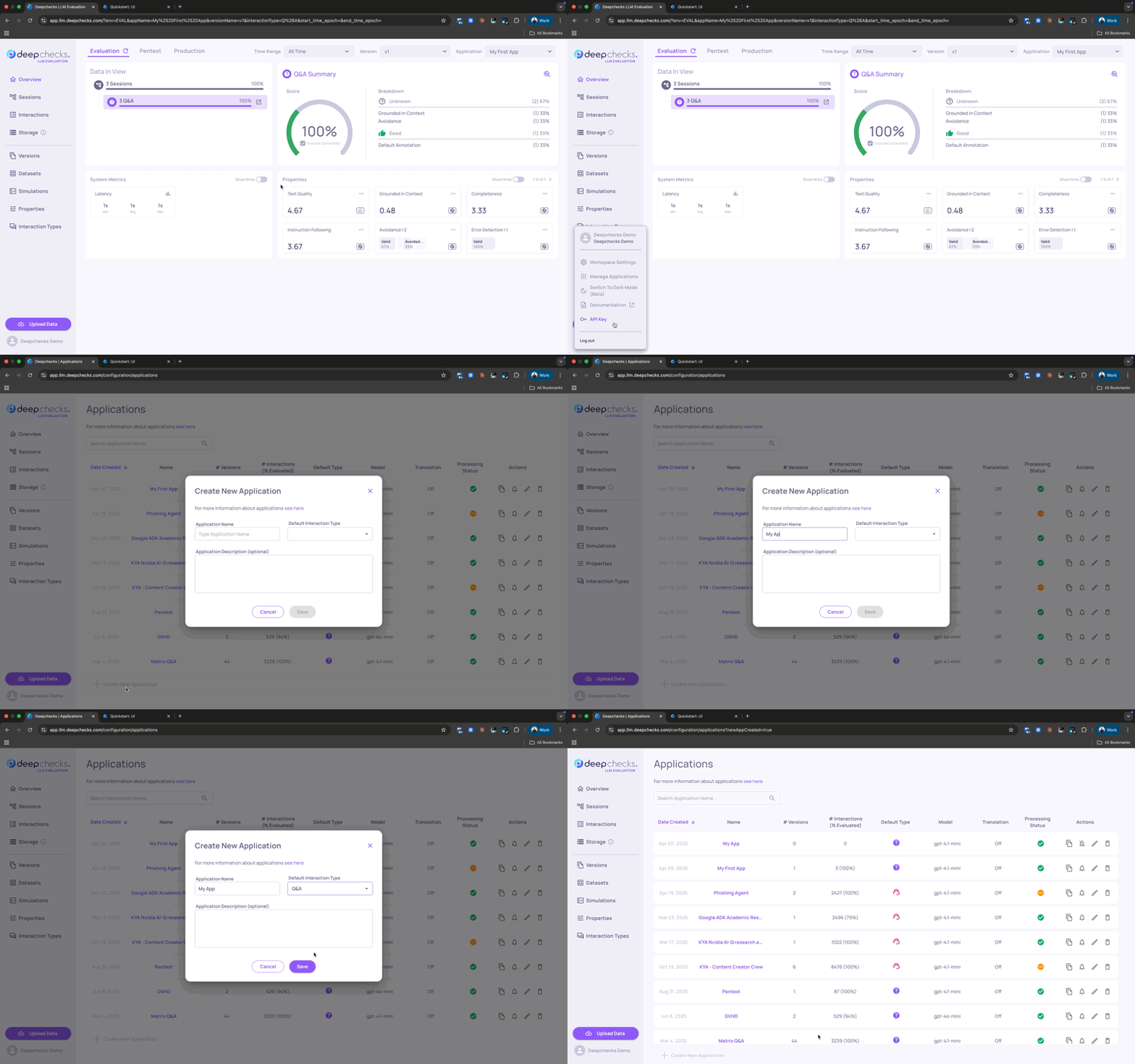
Fill in the following:
- Application Name - give it any name, for example "My First App"
- Application Type - select Q&A for this quickstart (this determines which built-in properties and annotation rules are enabled by default - you can always change it later and it doesn't affect which interactions you can upload to the app)
Click Save.
Step 2: Download the sample CSV
We have prepared a sample CSV file with Q&A interactions so you can explore the platform without needing your own data yet.
The file contains rows of interactions, each with an input (the user question) and an output (the model's response). Some rows also include an annotation column with human labels (Good/Bad) and an information retrieval column with the retrieved information.
The minimum required columns for any CSV upload are input and output. All other columns are optional but unlock more features when present.
Step 3: Upload the CSV
After creating your application, you will be taken to the application screen. From there, click the Upload Data button (you can find it at the bottom of the left sidebar).
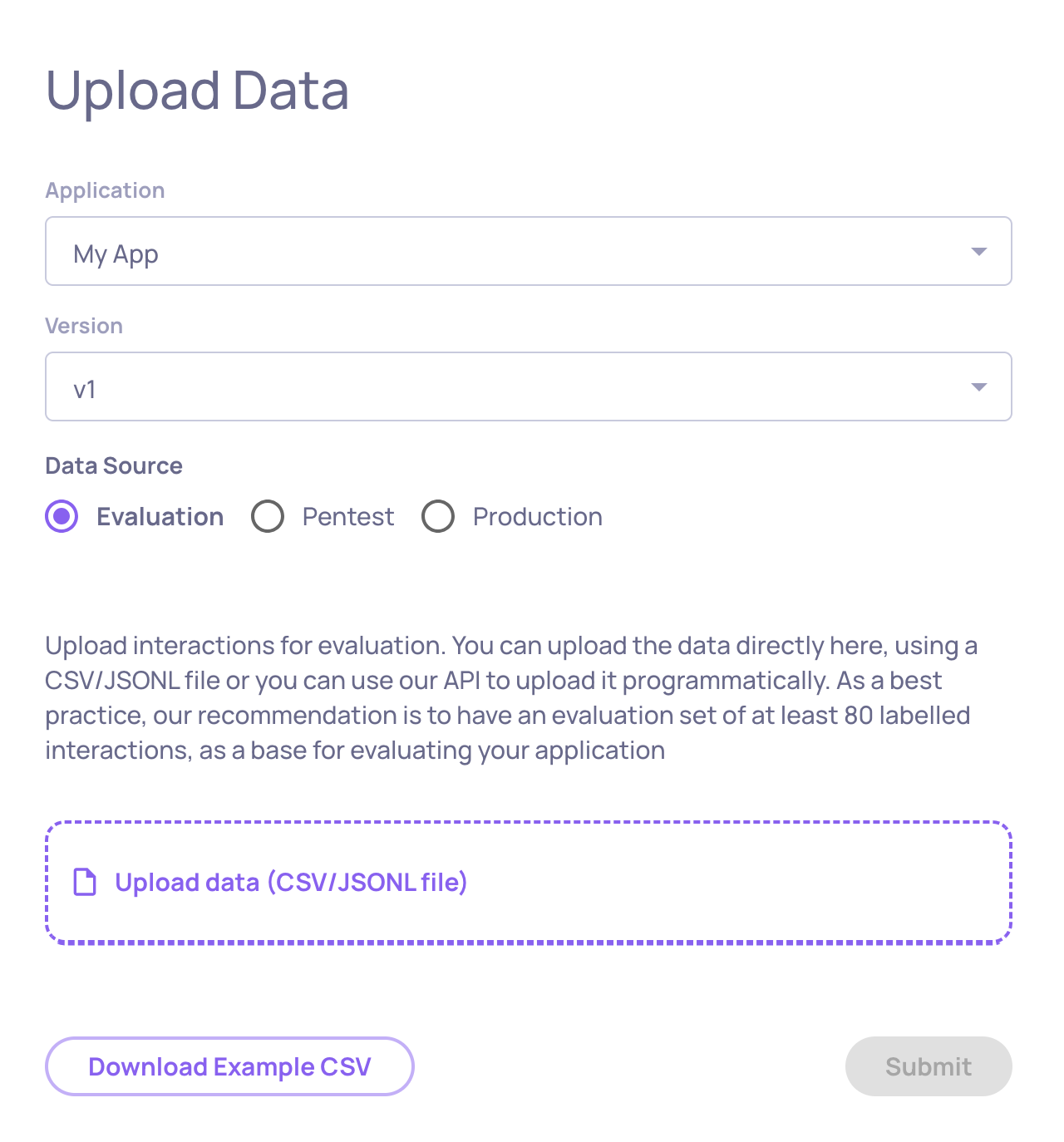
On the upload screen:
-
Make sure My First App is selected as the application
-
Enter v1 as the version name
-
Select Evaluation as the environment
-
Drag and drop the CSV file you downloaded, or click to browse and select it
-
Click Upload
Deepchecks will parse the file, validate the structure, and begin processing the interactions. This usually takes a few seconds for a small file.
Step 4: Explore your results
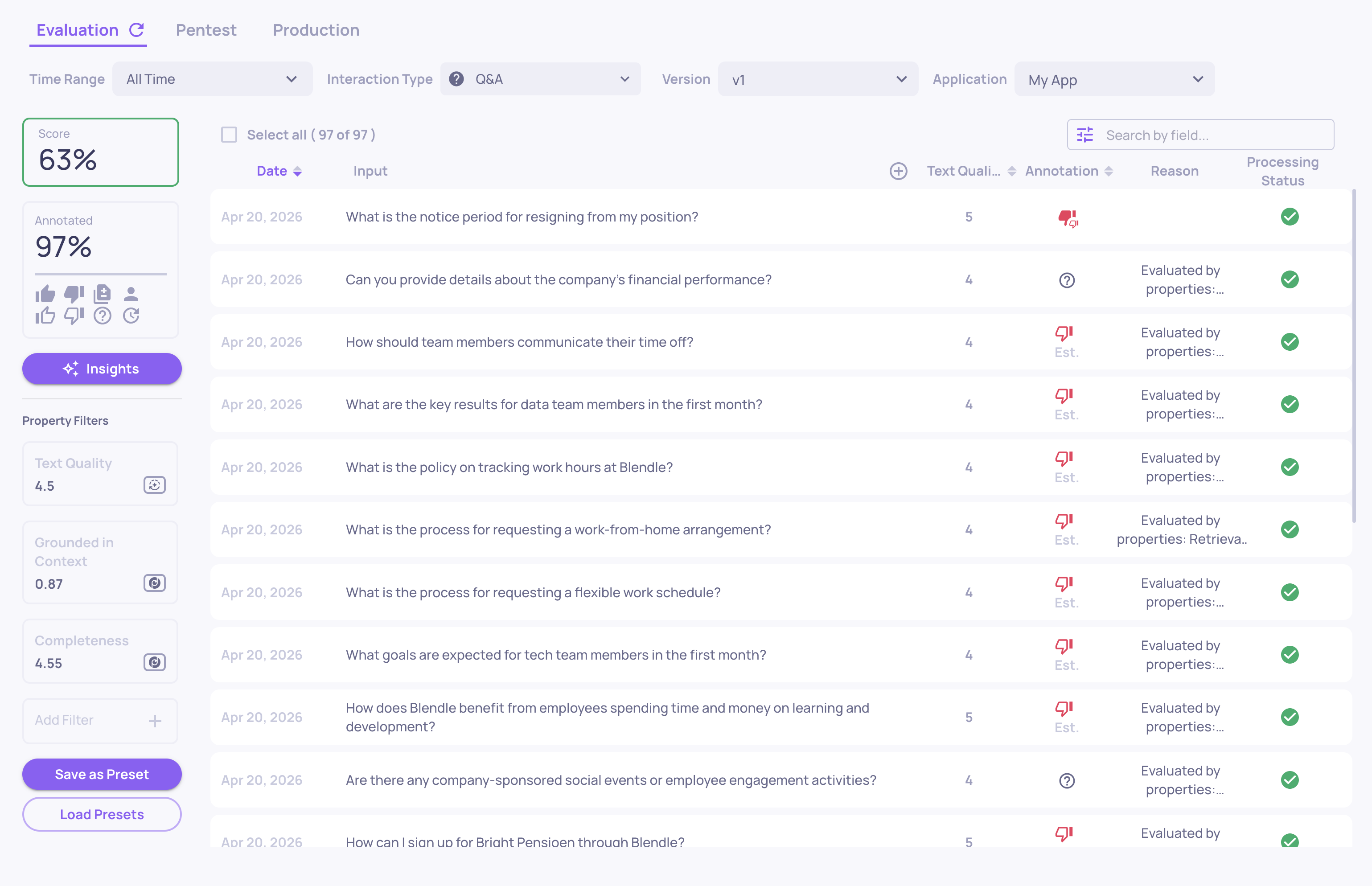
Once the upload completes, navigate to your application and select version v1. You will land on the version overview.
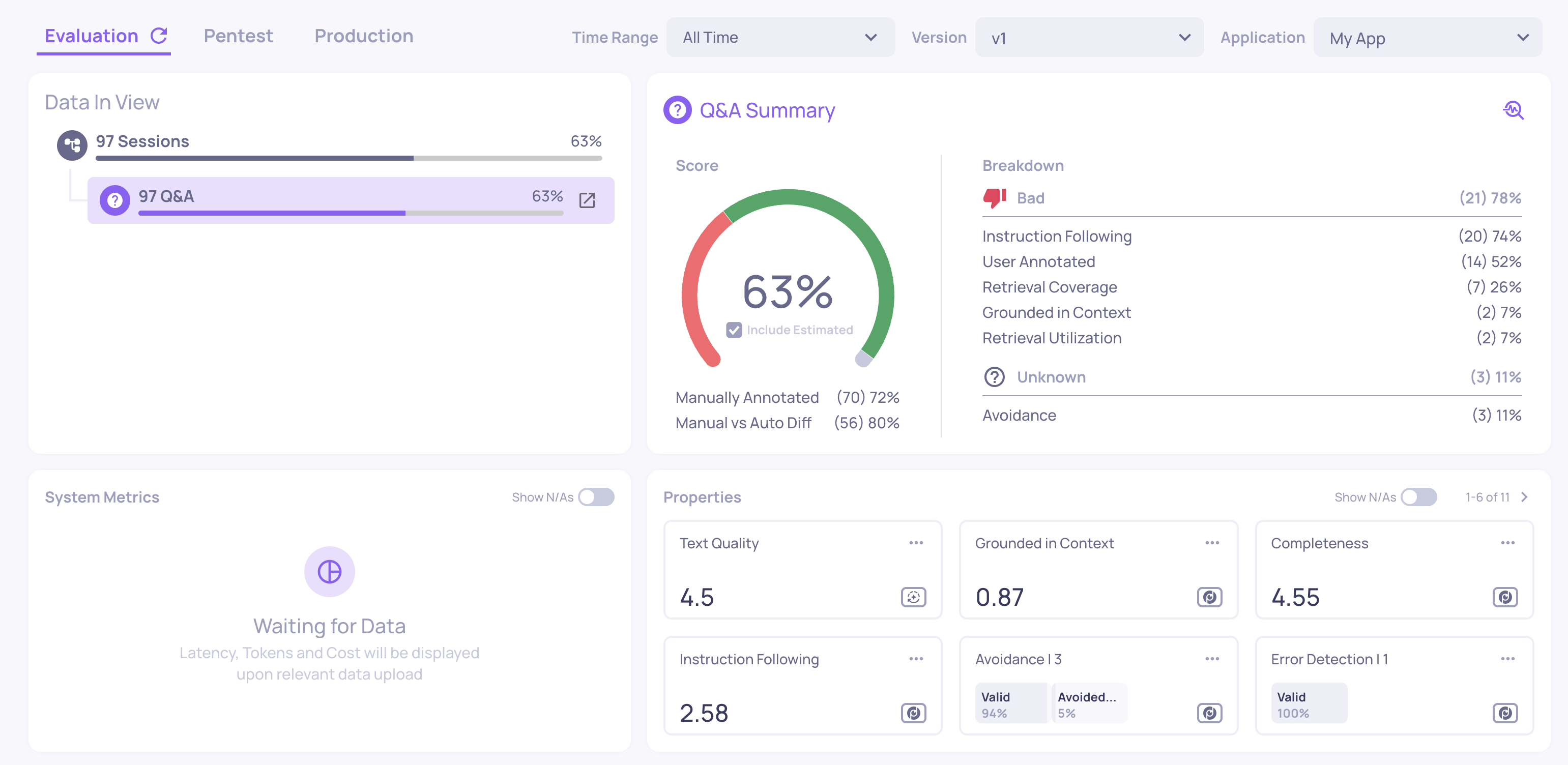
Here is what you are looking at:
Score summary - the overall percentage of interactions scored as Good vs. Bad. You will see two types of badges:
- Filled badges - these are the human annotations you uploaded (from the
annotationcolumn in the CSV). Not all rows have them. - Outlined badges - these are Deepchecks' estimated annotations, automatically computed based on property scores. Every interaction gets one.
Properties section - average values for automatically calculated quality metrics. Examples include:
- Grounded in Context - does the answer rely on the retrieved information, or does it hallucinate facts?
- Avoided Answer - did the model dodge the question instead of answering? This flags evasive responses like "I'm not able to help with that."
- Fluency - is the text grammatically well-formed?
- Sentiment - is the tone positive, negative, or neutral?
Anomalous values are highlighted so you can spot problems immediately.
System metrics - Deepchecks also tracks operational performance alongside quality. If your data includes started_at and finished_at timestamps, latency is calculated automatically. In a real integration, you can also log token counts and cost per interaction - giving you a live observability view of your system's health. You can see system metrics in the Interactions table and on the Version Comparison screen.
Interactions screen - click Interactions in the sidebar to see every individual interaction in a table. You can:
-
Sort and filter by any property score, annotation status, or system metric
-
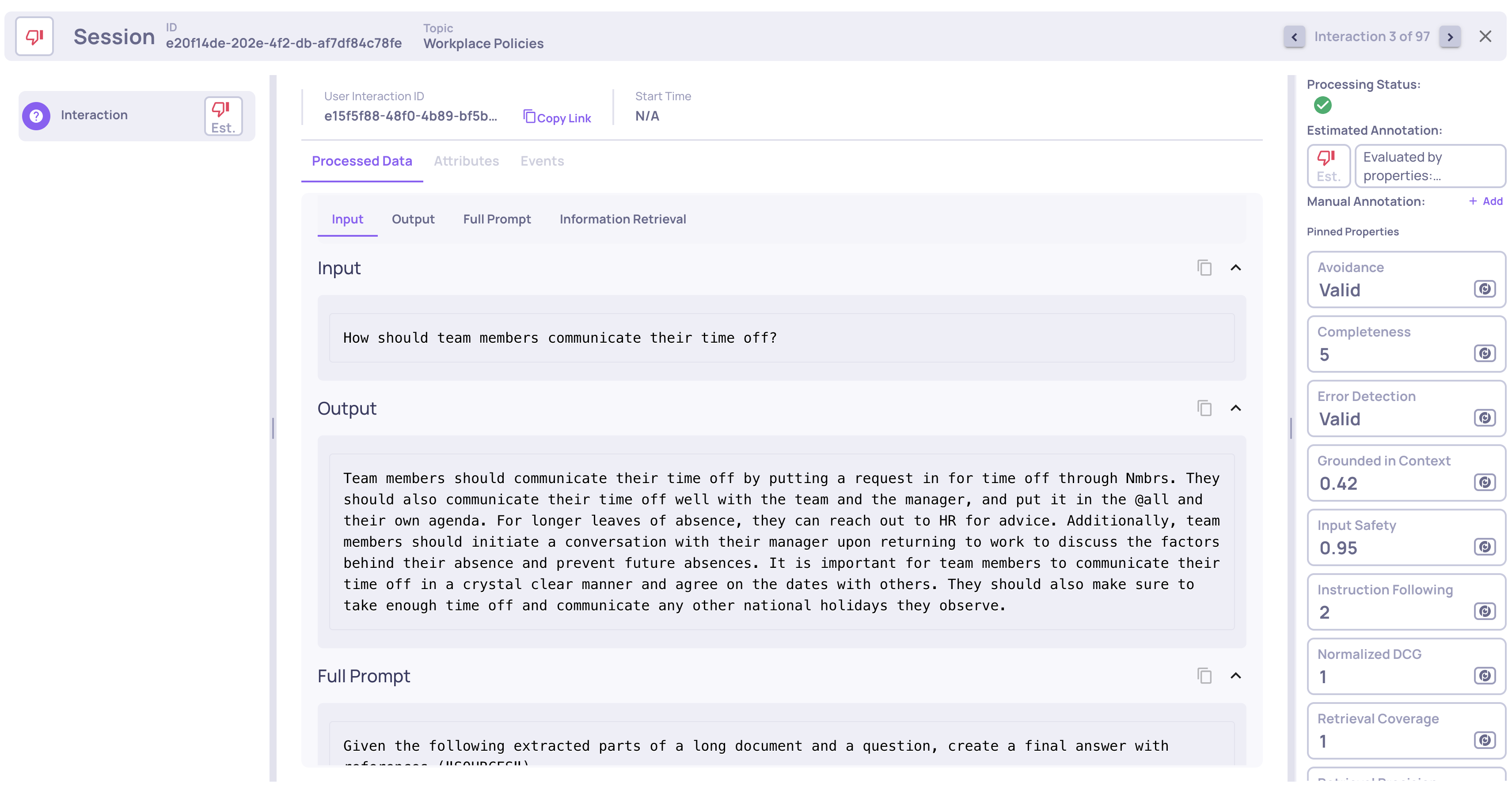
Click any row to see the full input, output, detailed property scores with explanations, and operational data
-
Compare your manual annotations with Deepchecks' estimates to calibrate the system
Updated 4 months ago